

Data Platform
Use Product Catalog data to support Personal Offers (offers matched and allocated to customers based on products). Create a consistent product hierarchy and add the attributes needed for accurate product matching.Configure the product hierarchy
- Upload a product hierarchy to Product Catalog Service.
- Use 5–6 business hierarchy levels to balance detail and usability.
- Use this structure consistently: Division → Department → Category → Subcategory → Class/Segment → SKU → Unique Product ID.
- Apply the same grouping logic at each hierarchy level.
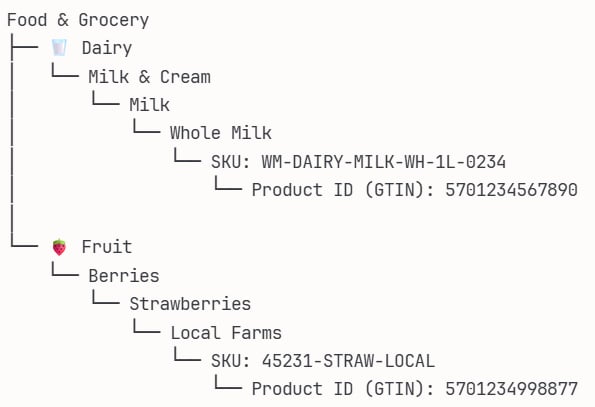
- Food & Grocery → Dairy → Milk & Cream → Milk → Whole Milk → WM-DAIRY-MILK-WH-1L-0234 → 5701234567890
- Food & Grocery → Fruit → Berries → Strawberries → Local Farms → 45231-STRAW-LOCAL → 5701234998877
Group products by customer need
Use the product hierarchy to match products for Personal Offers. Consistent, focused groups improve match quality; inconsistent or overly broad groups reduce offer relevance. At the Class/Segment level—the level directly before the SKU and unique product ID—group products that meet the same customer need and can substitute for each other. Do not group products with different purposes in the same Class/Segment. When an exact product match is unavailable, Personal Offers can apply an offer at a higher hierarchy level. Keep Class/Segment groups focused so an offer does not apply to products that are irrelevant to the customer. Limit the number of products in each hierarchy group. Large groups make it more difficult to allocate relevant offers.Optional: Add product attributes
Add the following optional Product Catalog Service attributes to improve Personal Offers allocation quality and reduce customer complaints:BrandSaleUnitWeightUnitUnitOfMeasure
- Ecological/organic — indicates whether a product is ecological or organic.
- Vegetarian/vegan — indicates whether a product is vegetarian or vegan.
isEcological attribute set to true:
Orchestration (Segmentation)
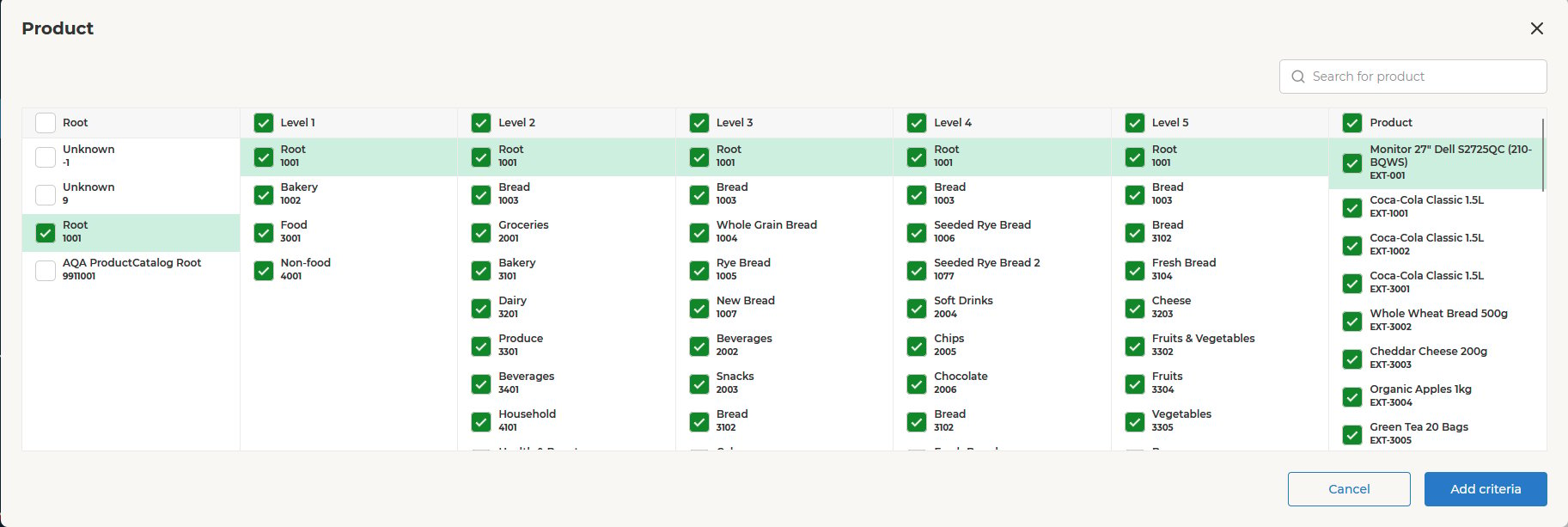
Orchestration uses Product Catalog data in the Product criterion of the segment builder. Marketers select categories at any level of the hierarchy, or individual products, to target customers by what they bought in a chosen period. Selecting a category includes every product below it.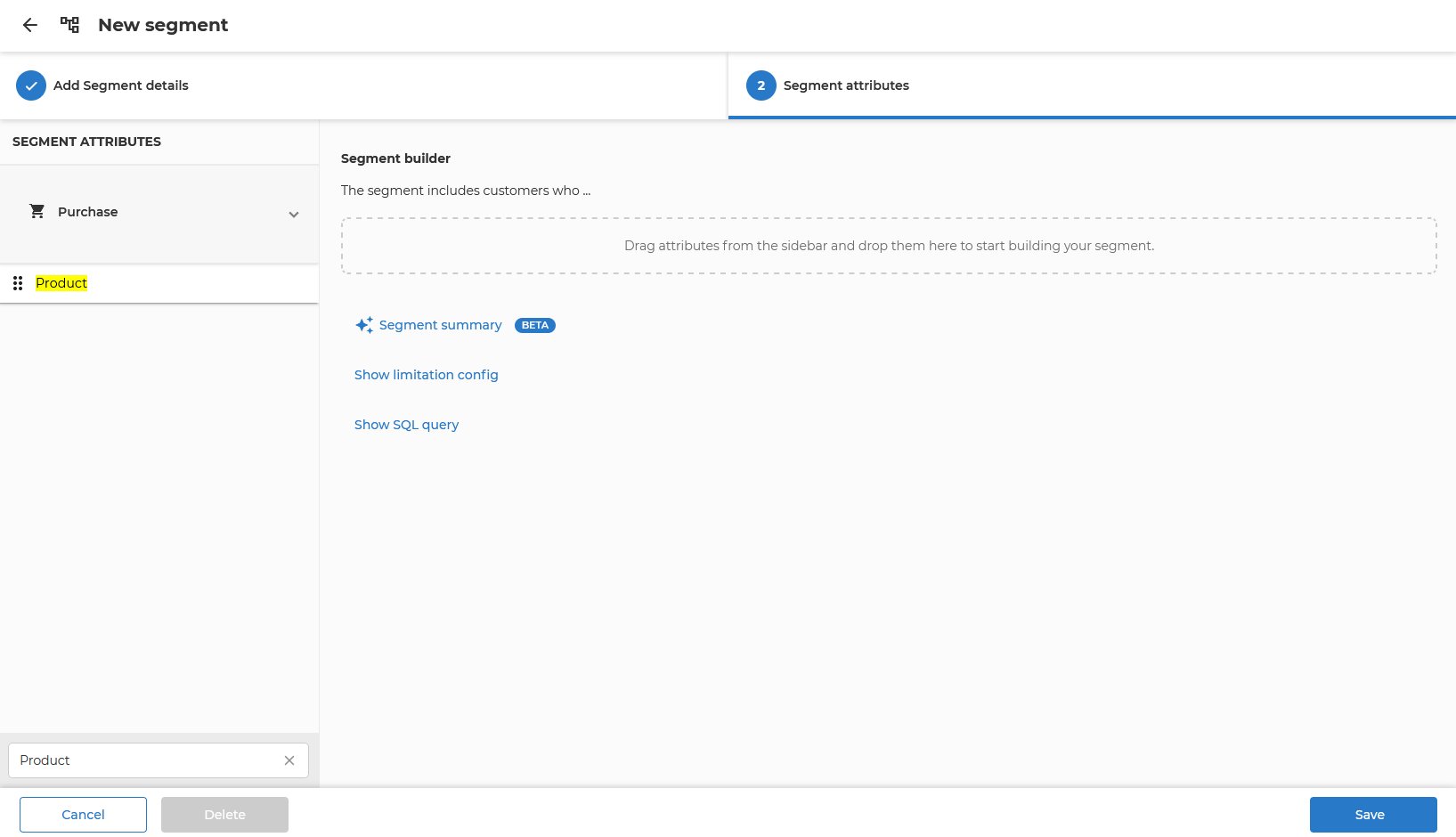
What to set up
The Product attribute belongs to the Purchase category, so Purchase data must be enabled for your setup.
Requirements
- Purchases must use the same product ID as the catalog (
ExternalId). Otherwise segments find no customers. - Product IDs must stay stable. Don’t issue a new
ExternalIdwhen a product changes. - Every product’s
HierarchyIdmust point to an existing hierarchy node, preferably at the lowest level. - Send one level entry per tree level, with business names (these become the column headers marketers see). Levels can’t be removed through the API, so never import the sample payload (
Root,Level 1…). - Moving a product to another category also moves its past purchases to the new category.
- Catalog changes show up in the picker within about a day.
Promotion Platform
Use Product Catalog data to apply promotions to individual products or product categories. Configure product identifiers and a consistent category structure before you create a promotion.Configure product data
- Give each product a unique identifier so product-based promotions apply to the intended product.
- Organize categories logically and use the same category structure throughout the catalog.
- Categories that are too broad can apply discounts to unintended products.
- Categories that are too narrow can create additional setup work to cover all relevant products.
- When you create a promotion, use the product and category identifiers already imported into Product Catalog.
- An identifier mismatch can prevent a promotion from applying to the intended product.
- An identifier mismatch can apply a promotion to a product the campaign was not designed for.
Scan&Pay
Use Product Catalog article data to identify scanned items and display them in the mobile application. Import complete, store-specific article data so customers can scan and purchase the intended items.Configure article data
- Import articles into Product Catalog, including store-specific data such as
salePrice. A data mismatch or misconfiguration can make an article unavailable during a Scan&Pay session or confuse the customer. - Ensure that EANs or barcodes uniquely identify each article so customers can scan and purchase it during a Scan&Pay session.
- Add
ImageUrlswhen possible. Scan&Pay can use placeholders, but product images help customers identify items in the mobile application. - Validate article categories beforehand. A misconfiguration can prevent promotions from applying during a Scan&Pay session, including discounts and post-purchase bonus allocation.