

A data stream is not a block on the campaign canvas, and it does not change how campaigns run. To call your system at one step of one campaign, use the OutboundAPI connection instead.
Before you start
- Access to Data streams. You need the Data streams admin role. Nexus roles lists it, with the read-only role.
- A callback URL. This is the HTTPS address in the receiving system that accepts the events. It must use a public host name. Nexus refuses an IP address and an address in a private network.
- An auth integration. Lobyco always signs in to the receiving system, with OAuth 2.0 client credentials, HTTP Basic or custom headers. You can pick a saved integration or create one from the subscription form. Authentication describes the three types.
- The receiving system’s developer. They build the endpoint by following Data streams: receive webhooks. You give them the signing key during this guide.
Set up a subscription
1
Open the subscription list
In Nexus, go to Data & integrations → Data streams. Each row is a subscription: one callback URL and the events sent to it. The list shows each subscription’s events, its status, its auth type, when it last changed and its owner.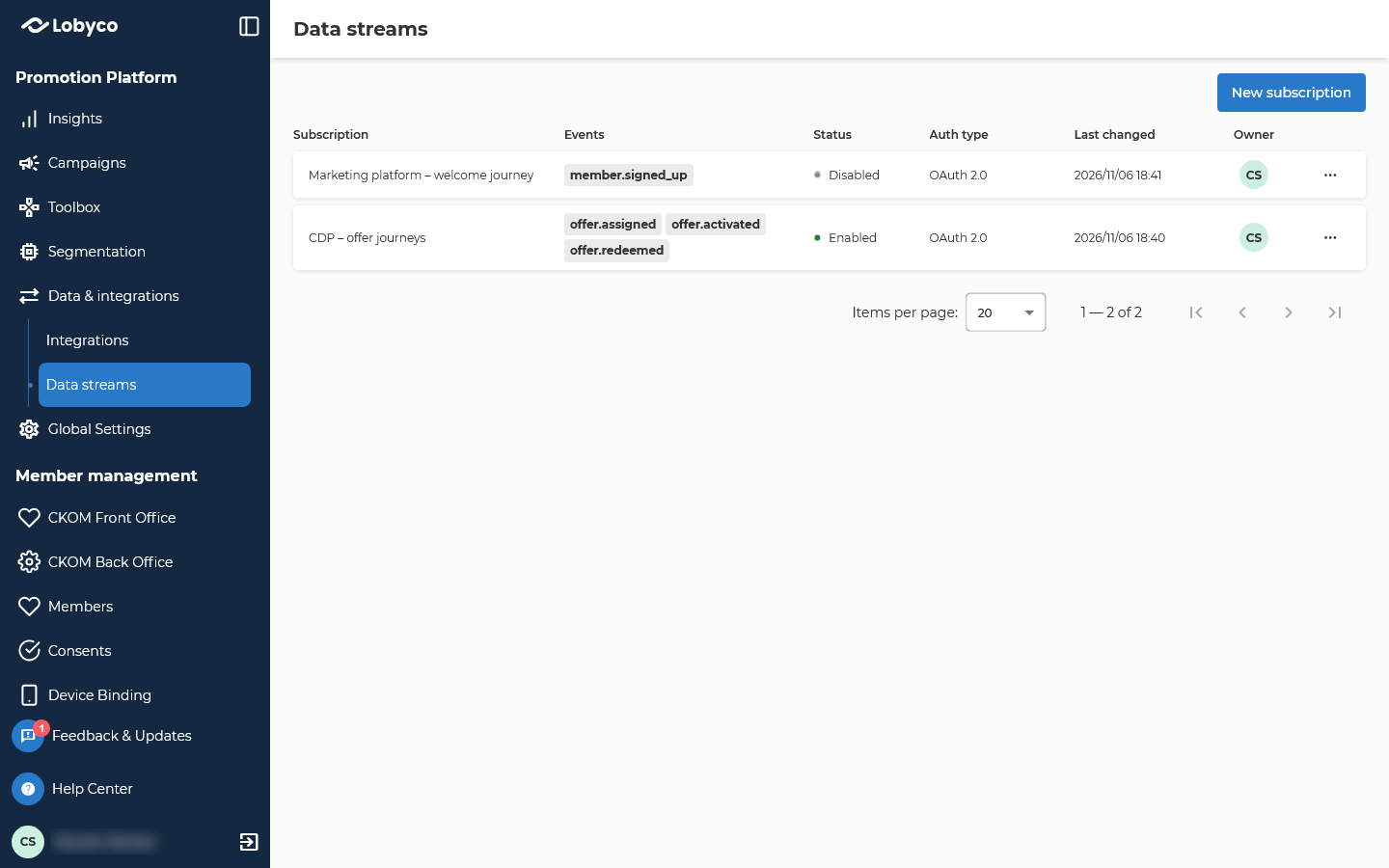
2
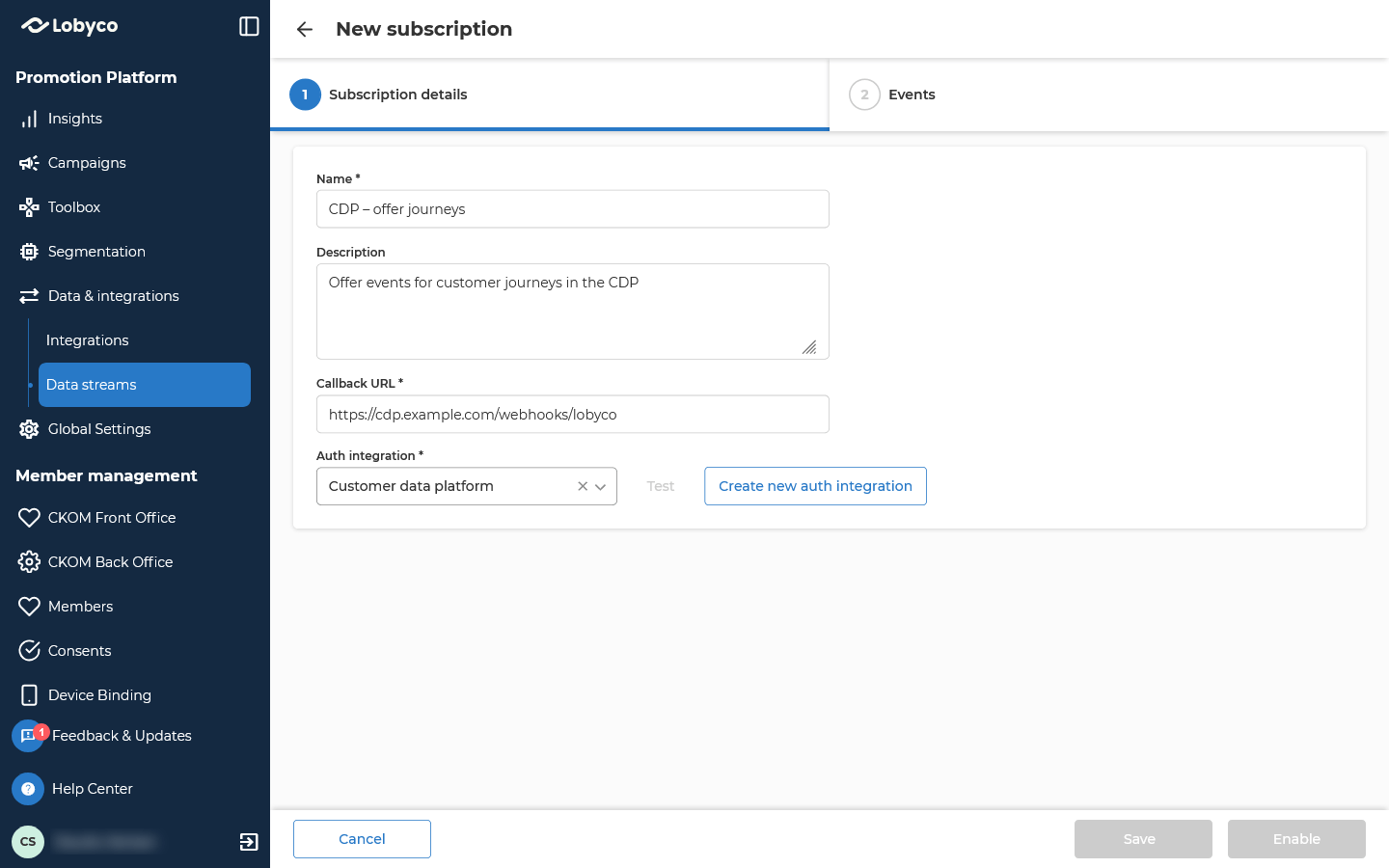
Fill in the subscription details
On the Subscription details tab, fill in four fields:- Name: how your team recognises the subscription, for example the receiving system and what it uses the events for.
- Description: optional. What the subscription is for.
- Callback URL: the receiving system’s HTTPS address for the events.
- Auth integration: the credentials Lobyco signs in with. The field reads No auth until you choose one, and you must choose one.
3
Select the events
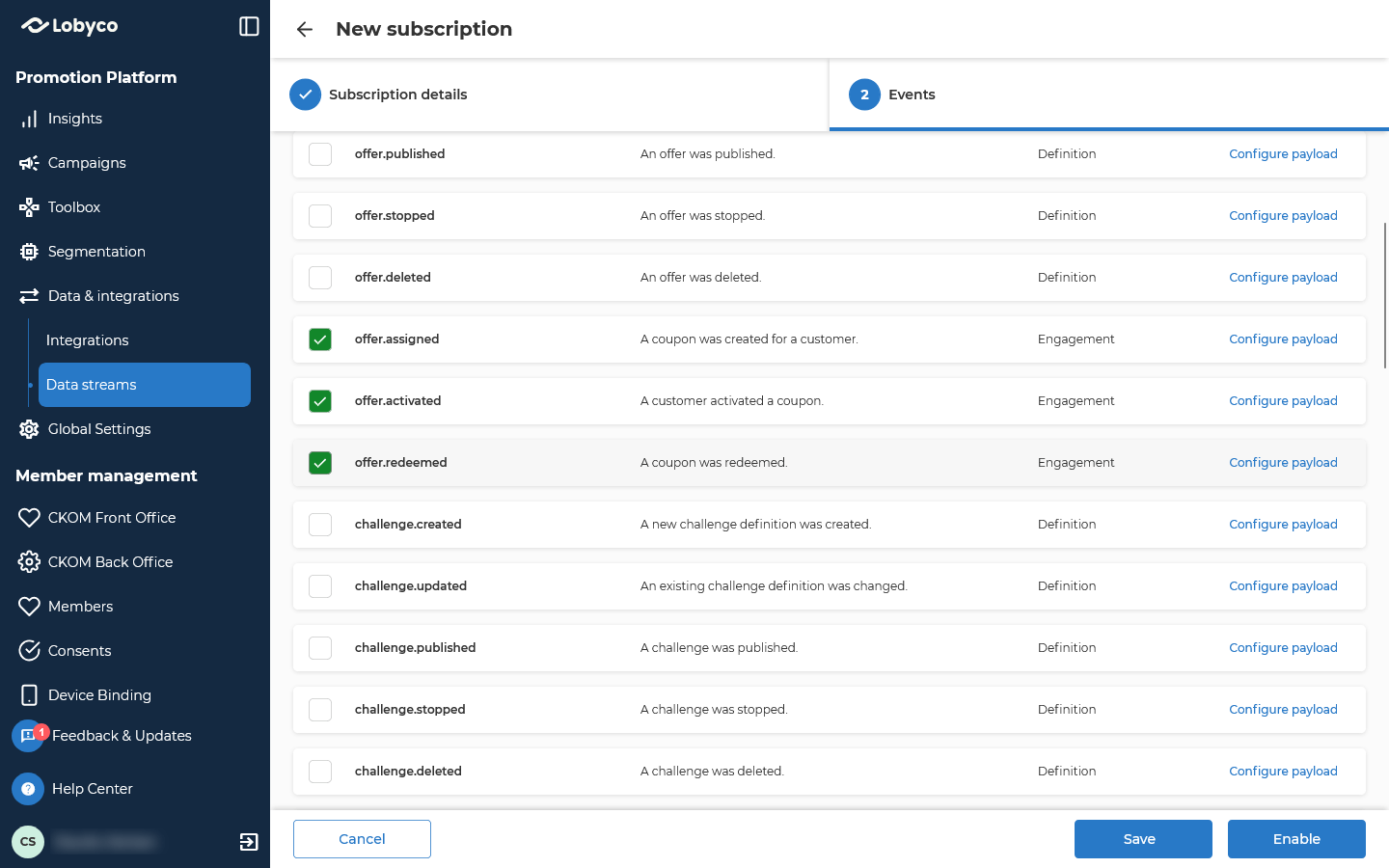
Open the Events tab. It lists the events you can choose, each with a description and a Category:- Definition: a campaign, an Inbound API block, an offer, a challenge or a game was created, changed, published, stopped or deleted.
- Engagement: something happened for one customer, such as an offer being redeemed.
- Member: a member’s profile, consents or loyalty cards changed.
- A CDP starts a journey when a customer gets an offer:
offer.assigned. - A CRM stops reminders once the customer has redeemed:
offer.redeemed. - A marketing platform starts a welcome journey for each new member:
member.signed_up. - A data platform keeps its copy of offers and challenges up to date:
offer.*andchallenge.*definition events.
4
[Optional] Configure a payload
By default, Lobyco sends each event exactly as its owning service publishes it. To send your own JSON instead, select Configure payload on the event’s row. Write the JSON in the Payload transformation editor, with a placeholder such as{{ event.OfferId }} for each field.When you type {{ event., the editor suggests the event’s fields. View schema describes them. Write a payload transformation has the rules.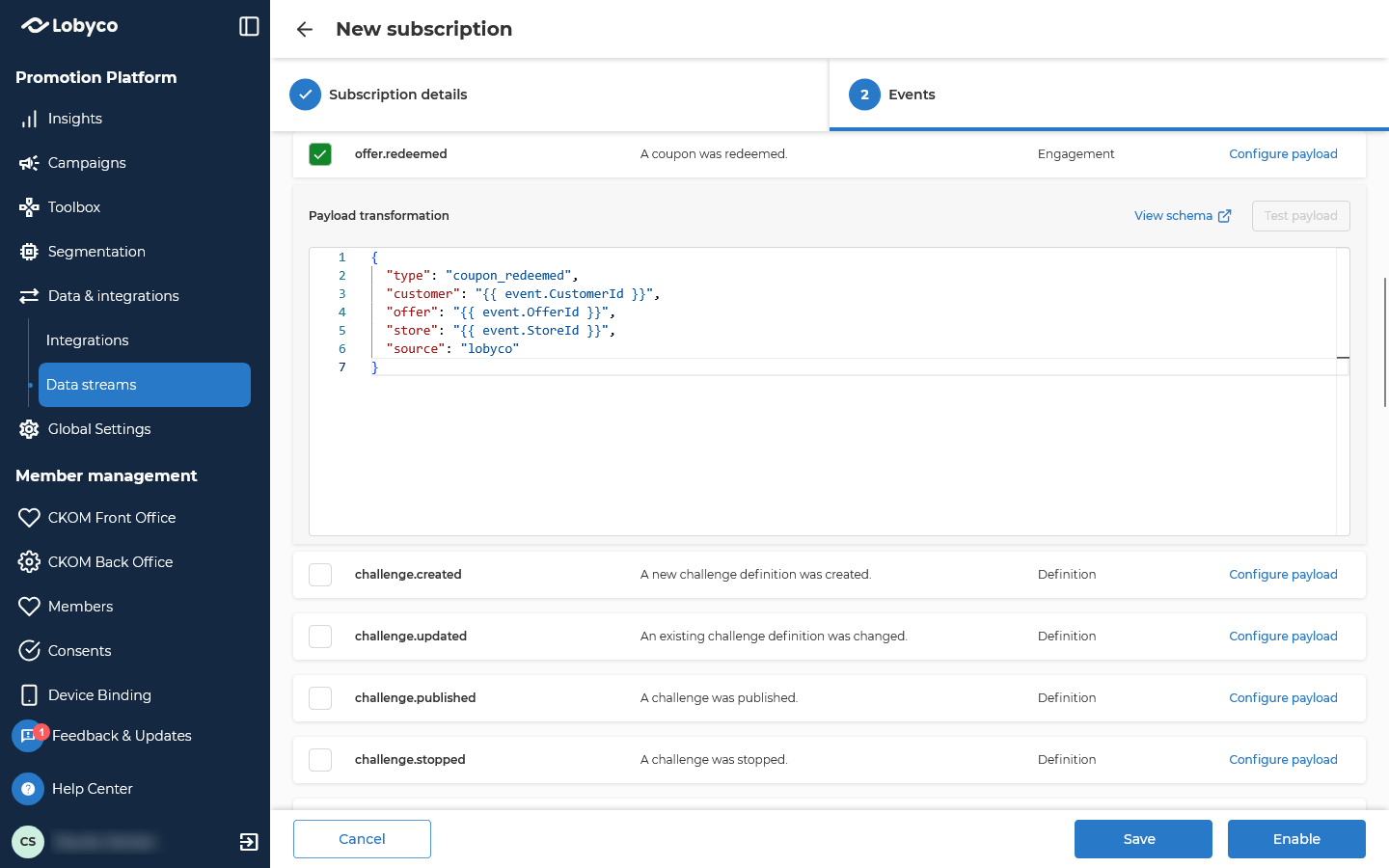
5
Save and copy the signing key
Select Save. Nexus saves the subscription disabled, so nothing is sent yet. It then shows the subscription’s signing key in the Your subscription was saved dialog.Select Copy and send the key securely to the receiving system’s developer, for example through a password manager. The key is shown only once. When you open the subscription later, Nexus shows only when the key was last generated.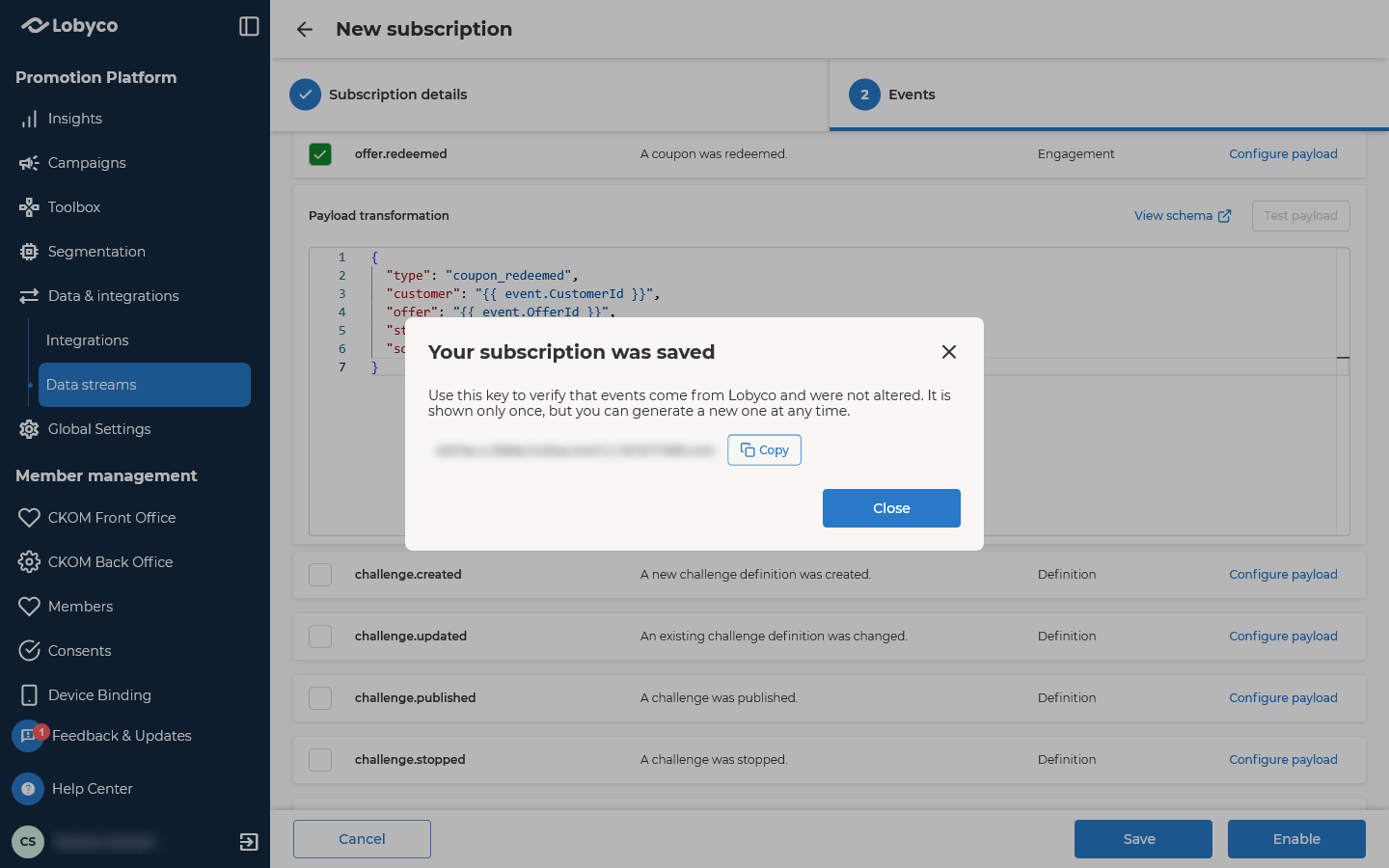
6
Test the subscription
A test uses the subscription as it was last saved. It works whether the subscription is enabled or disabled.- Test the connection. Select Test beside Auth integration, or Test in the subscription’s menu in the list. Lobyco sends one small test event to the callback URL, signed and authenticated like a real event.
- Test one event. On the Events tab, select Configure payload on a selected event, then Test payload. Lobyco sends a sample of that event, with made-up values, through its saved payload transformation. Nexus shows the Payload sent. Under Not in the event sample (sent empty), it lists placeholders the event does not carry.
2xx answer means the address is reachable and accepts the credentials. If the receiver already checks signatures, it also means the key reached the developer intact.The receiving system recognises test events by their type, webhook.test: see Recognise test requests.7
Enable the subscription
When the tests succeed and the developer confirms the receiver is ready, select Enable.The list now shows the subscription as Enabled. Lobyco sends every matching event from this moment on, as it happens. Events from before you enabled the subscription are not sent.Write a payload transformation
A payload transformation replaces the event body with your own JSON, built from the event’s fields. You can pick fields, rename them, nest them and add fixed values. It is set per event, and it is optional. For example, foroffer.redeemed:
- In quotes, a value arrives as text.
"{{ event.OfferId }}"works for every field. A true or false field in quotes arrives as the text"true"or"false". - Without quotes, a number or a true or false field keeps its type.
"points": {{ event.Points }}sends a number. Use this only for a field every event carries: an empty value without quotes breaks the JSON, and the event is not sent. Text always goes in quotes. - An empty field arrives empty. A field the event leaves out, or sends as
null, arrives as""in quotes. - Only plain JSON with placeholders. The editor refuses filters such as
| dateand| default, and tags such as{% if %}and{% for %}. - Prefer ids, codes and dates to free text. A value that contains quotes, backslashes or line breaks breaks the JSON.
- Invalid JSON: the payload is not valid JSON once its placeholders are filled in.
- Unavailable tags are used: a placeholder names a field the event does not have, or uses a filter.
Manage a subscription
An auth integration can be shared. An Outbound API block and a data stream can use the same one. A colleague who edits it may not see that a subscription depends on it. A wrong change makes the deliveries fail until it is fixed.
Failure and edge cases
Save and Enable are greyed out
Save and Enable are greyed out
Select at least one event on the Events tab. With read-only access, every action stays greyed out.
Test payload is greyed out
Test payload is greyed out
Save the subscription first. A test always uses the saved version.
The test fails
The test fails
Read the status code and the error that Nexus shows. A
401 or 403 means the receiving system refused the credentials: check the auth integration. A timeout or a connection error means the address did not answer: check the callback URL. Each attempt has 10 seconds in total, including the sign-in.The signing key was lost
The signing key was lost
Select Generate new key and give the new key to the developer, as in Manage a subscription.
The receiving system is down for a while
The receiving system is down for a while
Leave the subscription enabled. Lobyco keeps retrying each event on its retry schedule. Disabling the subscription discards every event that is waiting.
An event never arrived
An event never arrived
Nexus has no delivery history, and you cannot resend events yourself. Events that could not be delivered are kept for 30 days. Lobyco Support can look them up and resend them once the cause is fixed.
Related
- Data streams: receive webhooks — what the receiving system’s developer builds: signature check, responses, retries and duplicates.
- Events — event types, Data streams availability, timing and JSON Schemas.
- OutboundAPI connection — the three auth integration types, and how to call your system at one step of a campaign instead.