> ## Documentation Index
> Fetch the complete documentation index at: https://help.lobyco.com/llms.txt
> Use this file to discover all available pages before exploring further.
# Multi-tenant authentication using client credentials flow
> Import the Lobyco multi-tenant app into your own Azure AD and register the client app that calls the Lobyco APIs, so the secrets stay with you.
In the multi-tenant setup, the app that calls the Lobyco APIs is registered in your own Azure AD tenant. You hold its secret, rotate it under your own policy, and meet your compliance requirements without involving Lobyco. This page is the setup in the Azure portal. Your Azure AD administrator does it once per environment.
## Before you start
* Ask Lobyco for the authentication configuration of the environment. Lobyco creates a multi-tenant app on its side and sends you three values:
* `lobyco_app_id`, the application id of the Lobyco multi-tenant app.
* `lobyco_app_name`, its display name.
* `lobyco_app_uri`, its application id URI, which becomes the token scope.
* You must be a [Global Administrator, an Application Administrator or a Cloud Application Administrator](https://docs.microsoft.com/en-us/azure/active-directory/users-groups-roles/directory-assign-admin-roles) in your tenant, because application permissions take admin consent.
## The procedure
### Import the Lobyco app into your directory
Create a service principal in your tenant that represents the Lobyco multi-tenant app. Until it exists, the Lobyco app and its roles are not visible in your tenant. Run this in PowerShell:
```powershell theme={"system"}
New-AzureADServicePrincipal -AppId
```
The service principal then appears under **Enterprise applications** in the Azure portal, with the name in `lobyco_app_name`.
### Register the client app
Register the single-tenant app that represents your service. Go to **App registrations** in the Azure portal and choose **New registration**.
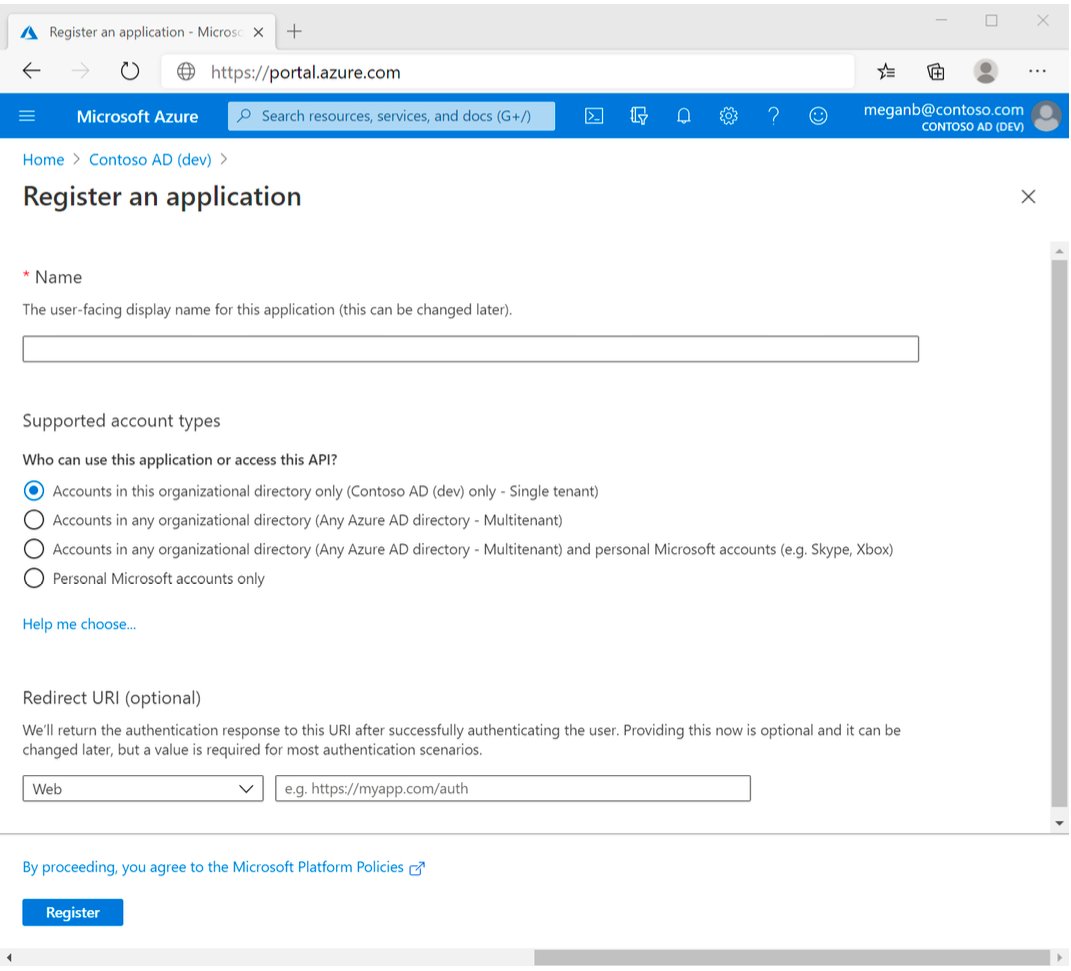 *Register an application: single tenant, and no redirect URI*
Fill in:
* **Name**: a name that says what it is and which environment it serves, such as `lobyco-api-client-app` followed by the environment name.
* **Supported account types**: **Accounts in this organizational directory only**.
* **Redirect URI**: leave it empty. The client credentials flow does not use one.
Choose **Register**. On the app's **Overview** page, copy **Application (client) ID** and keep it as `client_app_id`. The token request uses it.
### Add a secret or a certificate
A confidential client authenticates as itself, without a user, so it carries a credential of its own. Under **Certificates & secrets**, add a client secret or upload a certificate.
*Register an application: single tenant, and no redirect URI*
Fill in:
* **Name**: a name that says what it is and which environment it serves, such as `lobyco-api-client-app` followed by the environment name.
* **Supported account types**: **Accounts in this organizational directory only**.
* **Redirect URI**: leave it empty. The client credentials flow does not use one.
Choose **Register**. On the app's **Overview** page, copy **Application (client) ID** and keep it as `client_app_id`. The token request uses it.
### Add a secret or a certificate
A confidential client authenticates as itself, without a user, so it carries a credential of its own. Under **Certificates & secrets**, add a client secret or upload a certificate.
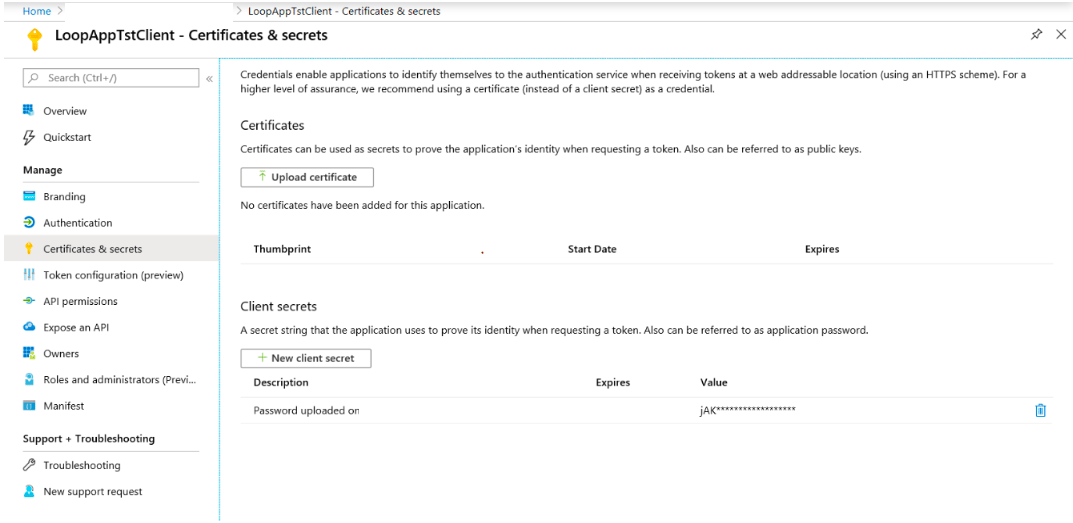 *A client secret added to the client app*
Copy the secret value as soon as it is created and keep it as `client_app_secret`. The portal shows it only once.
### Grant the application permissions
Under **API permissions**, choose **Add a permission** and open the **APIs my organization uses** tab. Search for the Lobyco app by `lobyco_app_name` or `lobyco_app_id`.
*A client secret added to the client app*
Copy the secret value as soon as it is created and keep it as `client_app_secret`. The portal shows it only once.
### Grant the application permissions
Under **API permissions**, choose **Add a permission** and open the **APIs my organization uses** tab. Search for the Lobyco app by `lobyco_app_name` or `lobyco_app_id`.
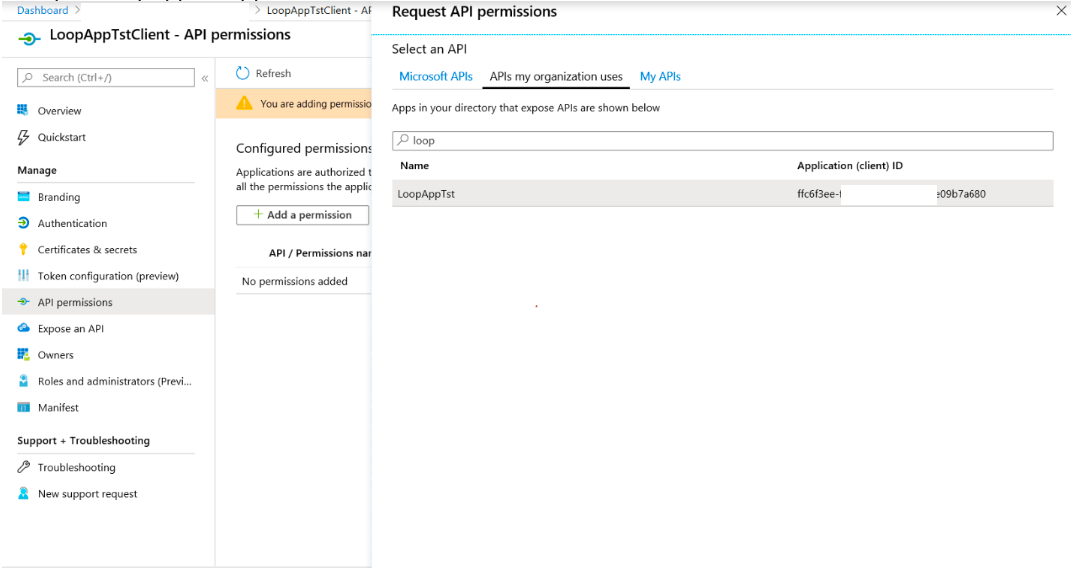 *Find the Lobyco app under APIs my organization uses. The screenshots show a test app, LoopAppTst*
Choose **Application permissions** and tick the roles your service needs. The test app in the screenshots exposes one, `Games.MobileAPI`.
*Find the Lobyco app under APIs my organization uses. The screenshots show a test app, LoopAppTst*
Choose **Application permissions** and tick the roles your service needs. The test app in the screenshots exposes one, `Games.MobileAPI`.
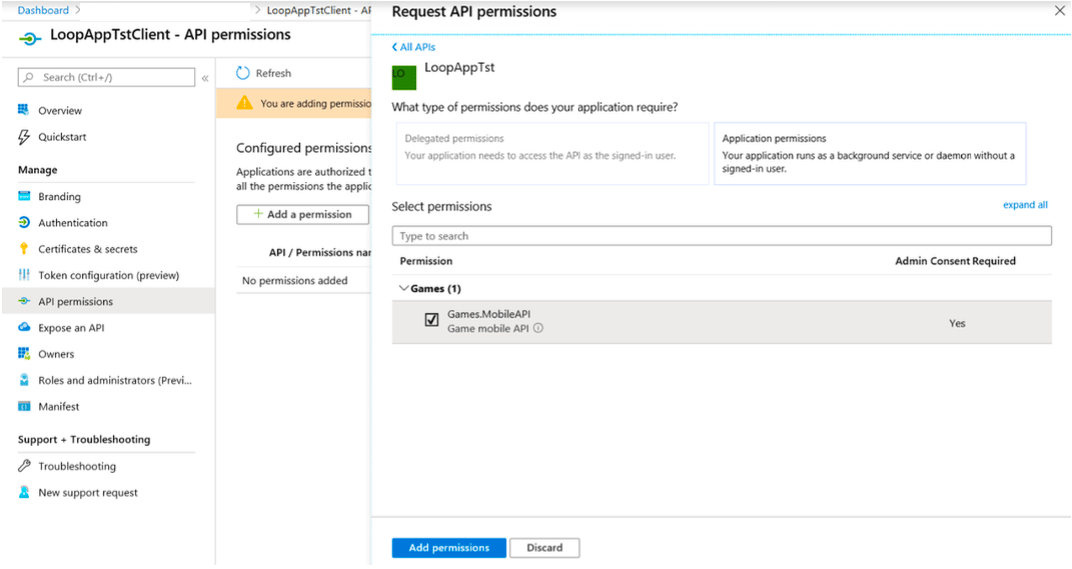 *Select the application permissions: these are the Lobyco roles the client app will carry*
Choose **Add permissions**, then **Grant admin consent for** your directory. Application permissions always take admin consent. Until it is granted, the status column reads **Not granted**.
*Select the application permissions: these are the Lobyco roles the client app will carry*
Choose **Add permissions**, then **Grant admin consent for** your directory. Application permissions always take admin consent. Until it is granted, the status column reads **Not granted**.
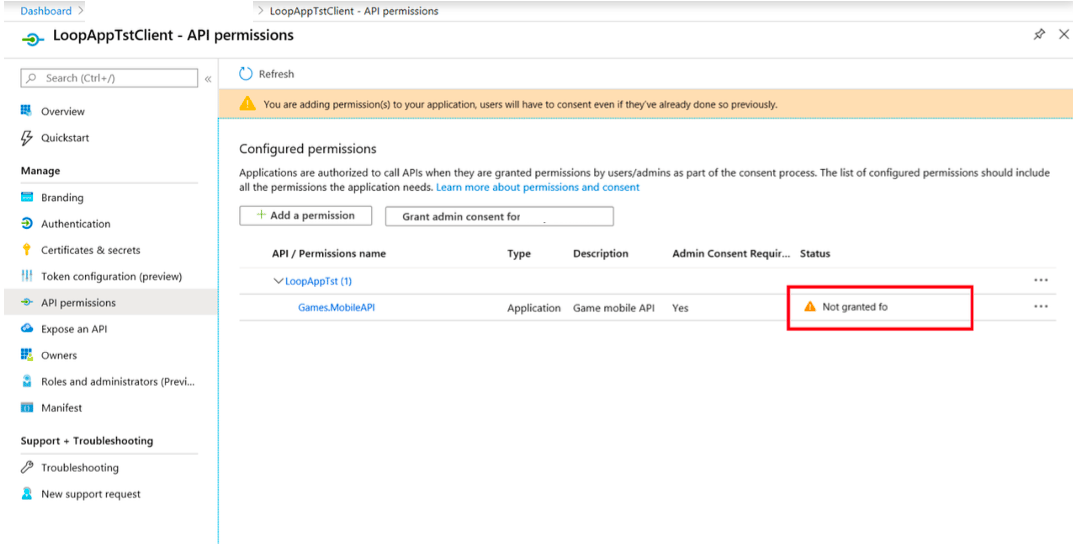 *Before consent, the permission is listed as not granted*
### Set the token version in the manifest
Open **Manifest**, set `accessTokenAcceptedVersion` to `2`, and save.
*Before consent, the permission is listed as not granted*
### Set the token version in the manifest
Open **Manifest**, set `accessTokenAcceptedVersion` to `2`, and save.
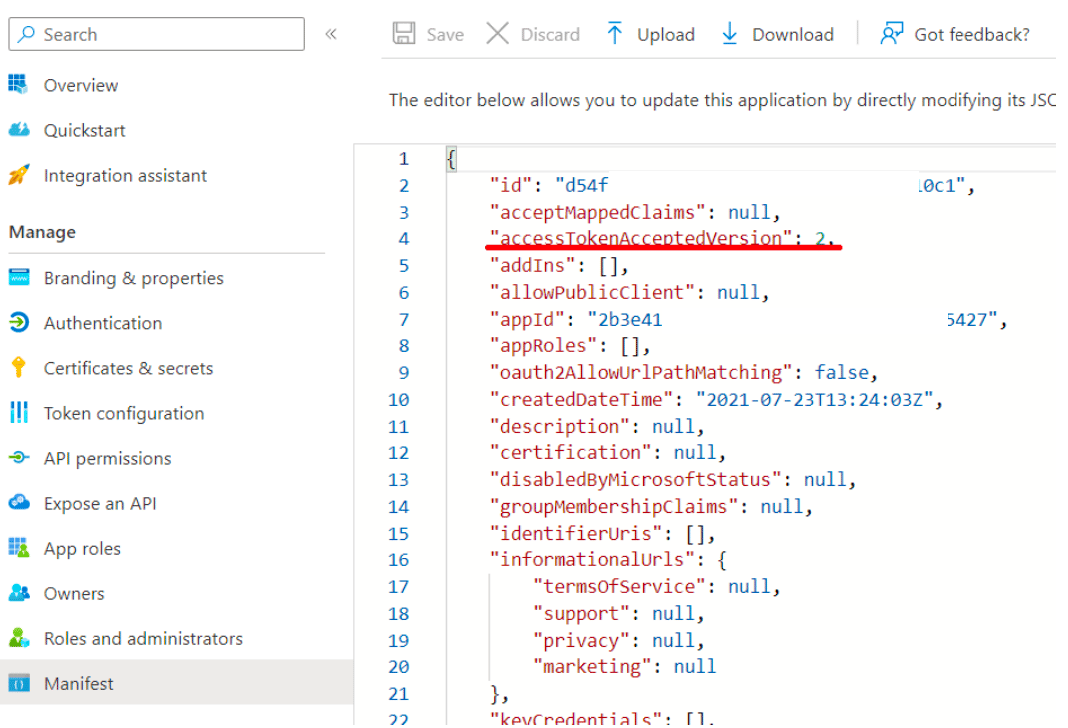 *accessTokenAcceptedVersion set to 2 in the manifest*
### Request a token and check its roles
Request the token as described on [Lobyco tenant authentication using client credentials flow](/integration/get-started/api-authentication/lobyco-tenant-authentication-using-client-credentials-flow). The request is the same; use your own tenant id as `client_tenant_id`, and the `client_app_id` and `client_app_secret` you recorded.
Decode the token at [jwt.ms](https://jwt.ms/) and check that the `roles` claim lists every application permission you granted. A token from this setup looks like this:
```json theme={"system"}
{
"aud": "{lobyco_app_id}",
"iss": "https://login.microsoftonline.com/{client_tenant_id}/v2.0",
"iat": 1580306045,
"nbf": 1580306045,
"exp": 1580309945,
"aio": "{aio}",
"azp": "{client_app_id}",
"azpacr": "1",
"oid": "{client_app_object_id}",
"roles": [
"{selected_app_role}"
],
"sub": "{client_app_object_id}",
"tid": "{client_tenant_id}",
"uti": "{uti}",
"ver": "2.0"
}
```
`aud` is the Lobyco app, `iss` is your tenant, and `roles` carries the permissions. With this token, the first call to a Lobyco API returns the normal response, not `401 Unauthorized`.
## Failure and edge cases
A refused token request, an expired token or a `401 Unauthorized` are the token request's own failures, covered on [Lobyco tenant authentication using client credentials flow](/integration/get-started/api-authentication/lobyco-tenant-authentication-using-client-credentials-flow). Two cases are specific to this setup.
Always `{lobyco_app_uri}.default`, whatever permissions you selected. The roles come from the consent, not from the scope string. A scope that names a permission instead is refused.
Admin consent was not granted for it, or the token was issued before consent. Grant consent and request a new token.
## Related
* [Lobyco tenant authentication using client credentials flow](/integration/get-started/api-authentication/lobyco-tenant-authentication-using-client-credentials-flow) — the token request and the `Authorization` header, shared by both setups.
* [API authentication](/integration/get-started/api-authentication) — the two schemes, and when to choose this setup.
* [Access to Lobyco Admin Portal](/integration/get-started/access-to-lobyco-admin-portal) — the other Azure AD setup, for admin users rather than services.
This documentation is built and hosted on [Mintlify](https://mintlify.com), a developer documentation platform.
*accessTokenAcceptedVersion set to 2 in the manifest*
### Request a token and check its roles
Request the token as described on [Lobyco tenant authentication using client credentials flow](/integration/get-started/api-authentication/lobyco-tenant-authentication-using-client-credentials-flow). The request is the same; use your own tenant id as `client_tenant_id`, and the `client_app_id` and `client_app_secret` you recorded.
Decode the token at [jwt.ms](https://jwt.ms/) and check that the `roles` claim lists every application permission you granted. A token from this setup looks like this:
```json theme={"system"}
{
"aud": "{lobyco_app_id}",
"iss": "https://login.microsoftonline.com/{client_tenant_id}/v2.0",
"iat": 1580306045,
"nbf": 1580306045,
"exp": 1580309945,
"aio": "{aio}",
"azp": "{client_app_id}",
"azpacr": "1",
"oid": "{client_app_object_id}",
"roles": [
"{selected_app_role}"
],
"sub": "{client_app_object_id}",
"tid": "{client_tenant_id}",
"uti": "{uti}",
"ver": "2.0"
}
```
`aud` is the Lobyco app, `iss` is your tenant, and `roles` carries the permissions. With this token, the first call to a Lobyco API returns the normal response, not `401 Unauthorized`.
## Failure and edge cases
A refused token request, an expired token or a `401 Unauthorized` are the token request's own failures, covered on [Lobyco tenant authentication using client credentials flow](/integration/get-started/api-authentication/lobyco-tenant-authentication-using-client-credentials-flow). Two cases are specific to this setup.
Always `{lobyco_app_uri}.default`, whatever permissions you selected. The roles come from the consent, not from the scope string. A scope that names a permission instead is refused.
Admin consent was not granted for it, or the token was issued before consent. Grant consent and request a new token.
## Related
* [Lobyco tenant authentication using client credentials flow](/integration/get-started/api-authentication/lobyco-tenant-authentication-using-client-credentials-flow) — the token request and the `Authorization` header, shared by both setups.
* [API authentication](/integration/get-started/api-authentication) — the two schemes, and when to choose this setup.
* [Access to Lobyco Admin Portal](/integration/get-started/access-to-lobyco-admin-portal) — the other Azure AD setup, for admin users rather than services.
This documentation is built and hosted on [Mintlify](https://mintlify.com), a developer documentation platform.