> ## Documentation Index
> Fetch the complete documentation index at: https://help.lobyco.com/llms.txt
> Use this file to discover all available pages before exploring further.
# Admin portal chain and store level access
> Limit an admin user to the chains or stores they manage, by putting store and chain ids on their Azure AD account.
By default a role opens a section of the Lobyco Admin Portal for every chain and store. For chain and store managers you can narrow that. The Promotion Platform and Loyalty Membership products then show only the data of the chains or stores on the admin user's account. The ids travel as custom claims in the sign-in token, through Azure AD extension properties. This page is the setup in your tenant and in Postman. Your Azure AD administrator does it.
There are three levels of access:
| Level | Sees | How |
| - | - | - |
| Full access | Every chain and store, including ones added later | `chain_ids` or `store_ids` set to `*` |
| Chain manager | The chains listed | `chain_ids` set to the chain ids |
| Store manager | The stores listed | `store_ids` set to the store ids |
## Before you start
* The portal's enterprise application must exist in your tenant, and roles must work. See [Access to Lobyco Admin Portal](/integration/get-started/access-to-lobyco-admin-portal).
* The chain and store ids must be the ones imported into Lobyco's store master data. A claim with an id Lobyco does not know matches nothing. See [Importing store and chain data](/integration/retail-master-data/import-chains-and-stores).
* You must be able to register apps and grant admin consent in your tenant. The last steps run in Postman.
## The procedure
The setup has three parts. An extension app owns the custom attributes, the portal's enterprise application maps them to claims, and each Azure AD user carries the values.
### Register the extension app
In Microsoft Entra ID, open **App registrations** and choose **New registration**.
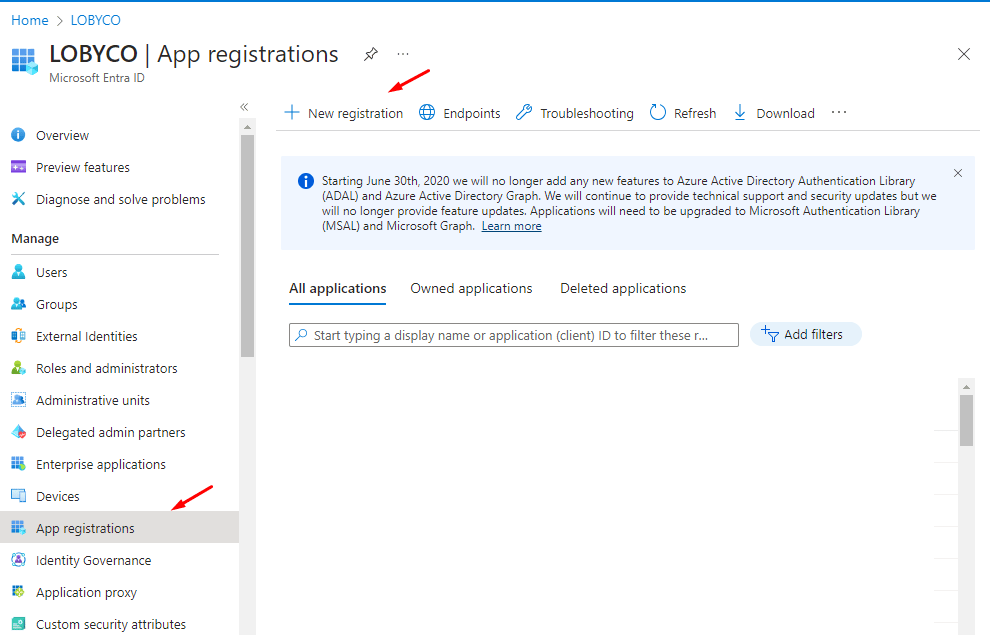 *App registrations, and the New registration button*
Fill in:
* **Name**: `lobycoportal-extensions`, with the environment name appended, so the app is easy to find later.
* **Supported account types**: **Accounts in this organizational directory only**.
Choose **Register**.
### Add a client secret
Under **Certificates & secrets**, choose **New client secret**. The description and the expiry are your choice.
*App registrations, and the New registration button*
Fill in:
* **Name**: `lobycoportal-extensions`, with the environment name appended, so the app is easy to find later.
* **Supported account types**: **Accounts in this organizational directory only**.
Choose **Register**.
### Add a client secret
Under **Certificates & secrets**, choose **New client secret**. The description and the expiry are your choice.
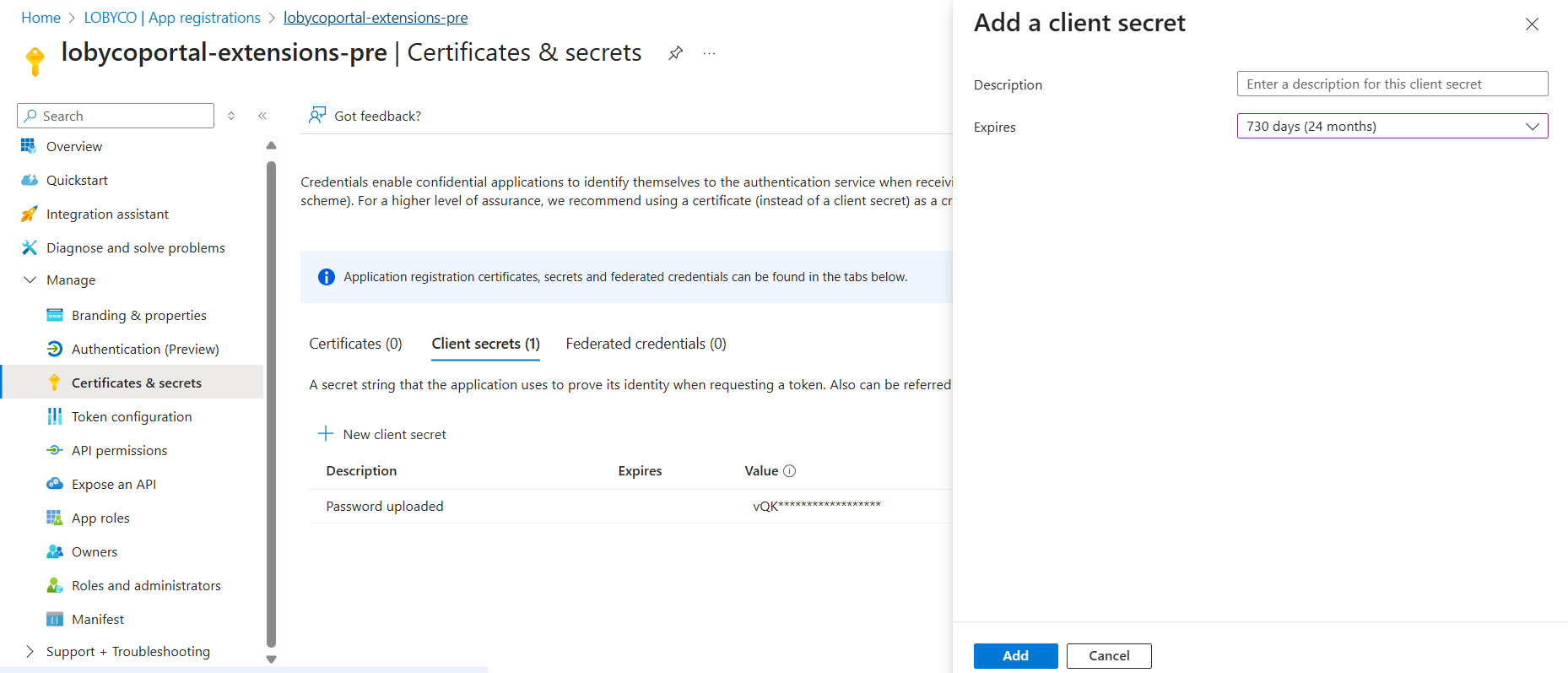 *Adding a client secret to the extension app*
Copy the secret value right after it is created and store it securely. The Postman collection uses it later, and the portal shows it only once.
*Adding a client secret to the extension app*
Copy the secret value right after it is created and store it securely. The Postman collection uses it later, and the portal shows it only once.
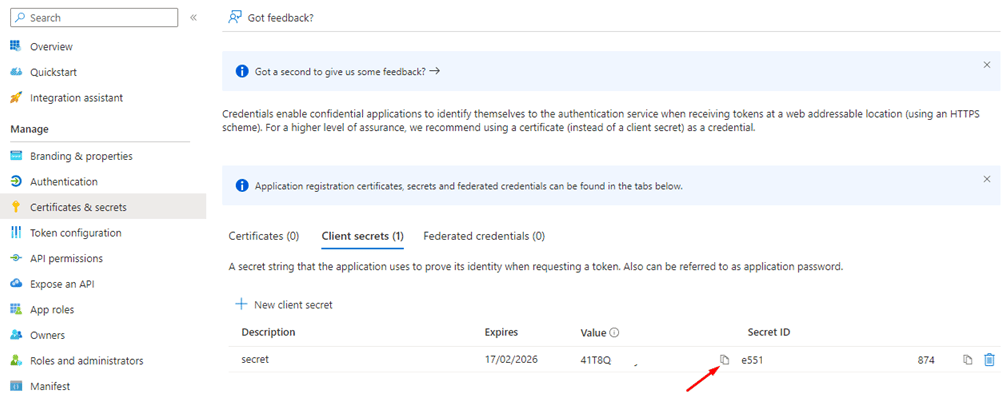 *Copy the value from the list before you leave the page*
### Grant the permission to write user profiles
Under **API permissions**, choose **Add a permission**, then **Microsoft Graph**, then **Application permissions**. Search for `User.ReadWrite.All`, tick it and choose **Add permissions**. The extension app writes the chain and store ids to user profiles with this permission.
*Copy the value from the list before you leave the page*
### Grant the permission to write user profiles
Under **API permissions**, choose **Add a permission**, then **Microsoft Graph**, then **Application permissions**. Search for `User.ReadWrite.All`, tick it and choose **Add permissions**. The extension app writes the chain and store ids to user profiles with this permission.
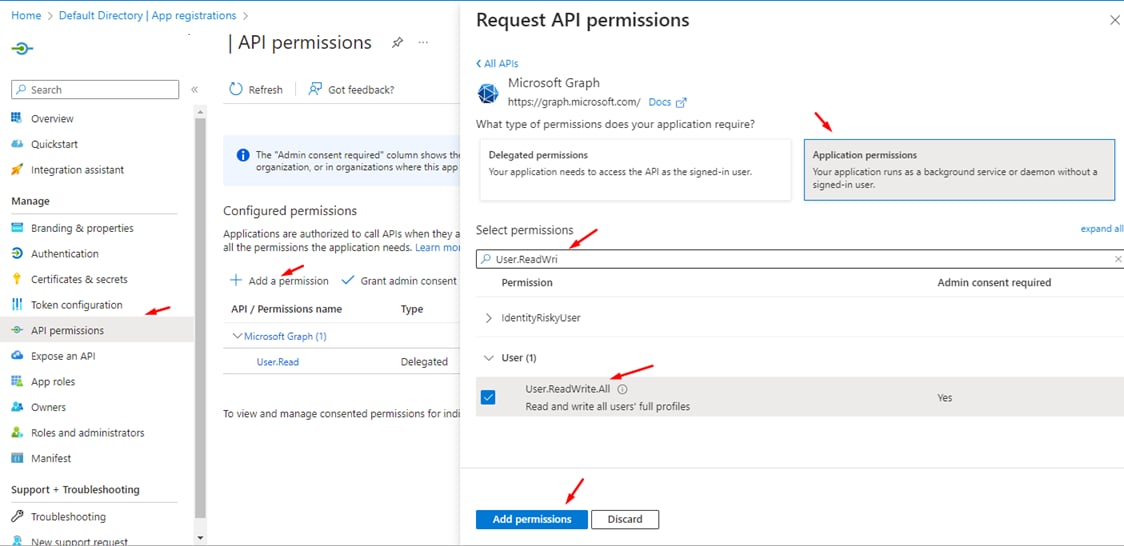 *User.ReadWrite.All as an application permission*
Then choose **Grant admin consent** for your directory and confirm.
*User.ReadWrite.All as an application permission*
Then choose **Grant admin consent** for your directory and confirm.
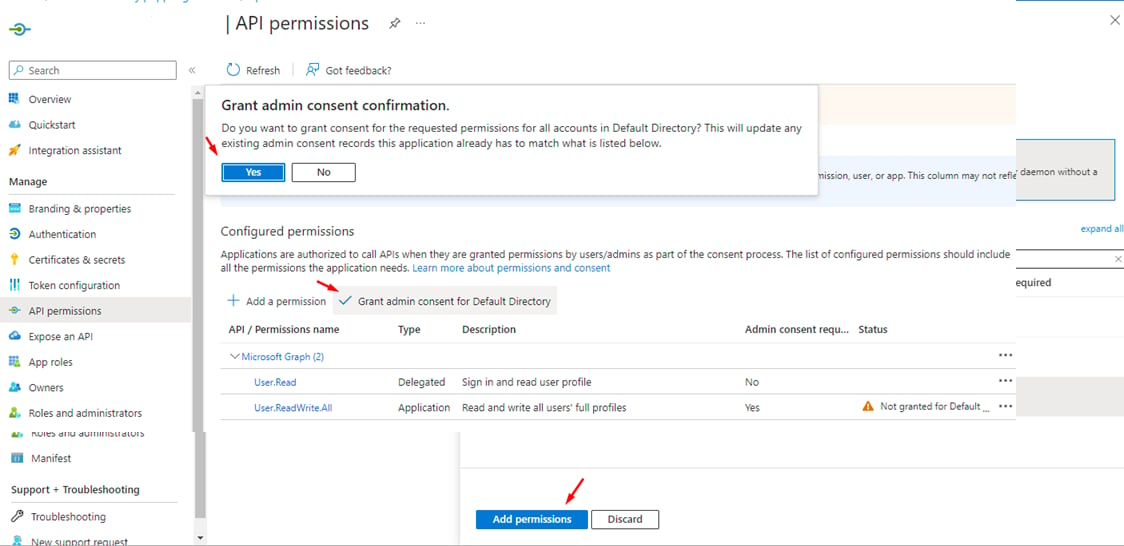 *Consent must be granted before the permission takes effect*
### Edit the manifest
Open **Manifest**. Set `acceptMappedClaims` to `true` and `accessTokenAcceptedVersion` to `2`, and save.
*Consent must be granted before the permission takes effect*
### Edit the manifest
Open **Manifest**. Set `acceptMappedClaims` to `true` and `accessTokenAcceptedVersion` to `2`, and save.
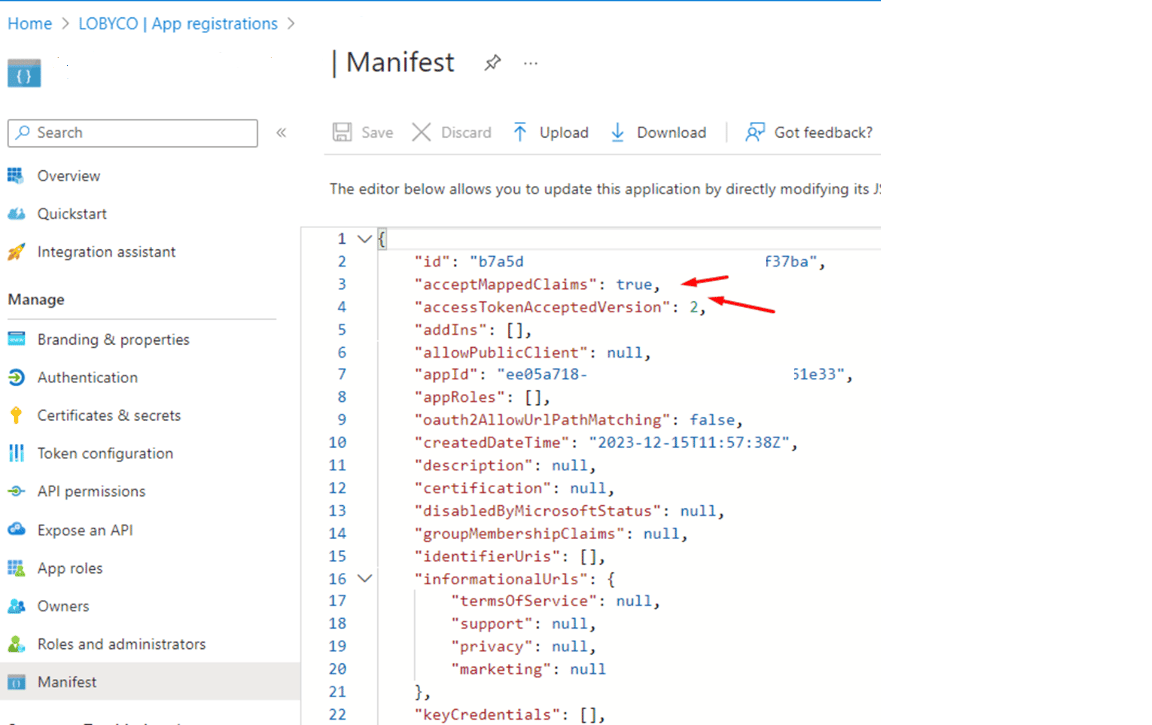 *The two manifest properties to change*
### Create the extension properties
Add two extension properties to the extension app, `chain_ids` and `store_ids`. This is a Microsoft Graph call, and it takes a token with rights on the application object. The quickest way to get one is from the Azure portal's own session. Open **Users** in Microsoft Entra ID with the browser's developer tools on the **Network** tab, and choose **Refresh**. Copy the bearer token from the `Authorization` header of the `$batch` request.
*The two manifest properties to change*
### Create the extension properties
Add two extension properties to the extension app, `chain_ids` and `store_ids`. This is a Microsoft Graph call, and it takes a token with rights on the application object. The quickest way to get one is from the Azure portal's own session. Open **Users** in Microsoft Entra ID with the browser's developer tools on the **Network** tab, and choose **Refresh**. Copy the bearer token from the `Authorization` header of the `$batch` request.
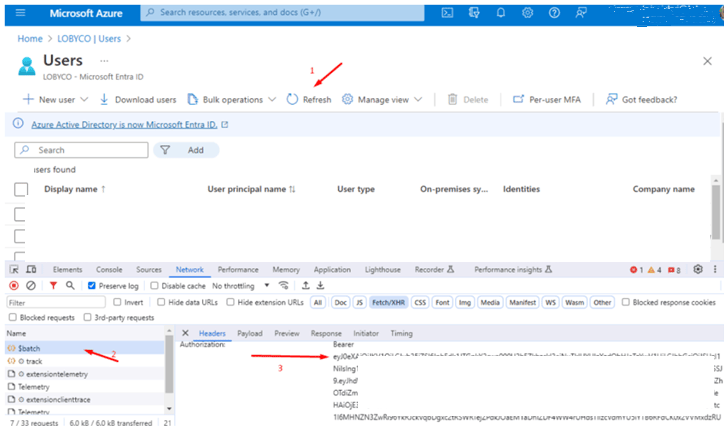 *The portal's own Graph token, taken from the \$batch request*
Then send one request per property:
```http theme={"system"}
POST https://graph.microsoft.com/v1.0/applications/{extension-app-object-id}/extensionProperties
Content-Type: application/json
Authorization: Bearer {token}
{
"name": "store_ids",
"dataType": "string",
"isMultiValued": true,
"targetObjects": ["User"]
}
```
Repeat it with `"name": "chain_ids"`. The object id is on the extension app's **Overview** page; it is not the application (client) id.
### Map the claims on the portal's enterprise application
Open **Enterprise applications** and find the portal's service principal: the app Lobyco named for this environment. Go to **Single sign-on**.
*The portal's own Graph token, taken from the \$batch request*
Then send one request per property:
```http theme={"system"}
POST https://graph.microsoft.com/v1.0/applications/{extension-app-object-id}/extensionProperties
Content-Type: application/json
Authorization: Bearer {token}
{
"name": "store_ids",
"dataType": "string",
"isMultiValued": true,
"targetObjects": ["User"]
}
```
Repeat it with `"name": "chain_ids"`. The object id is on the extension app's **Overview** page; it is not the application (client) id.
### Map the claims on the portal's enterprise application
Open **Enterprise applications** and find the portal's service principal: the app Lobyco named for this environment. Go to **Single sign-on**.
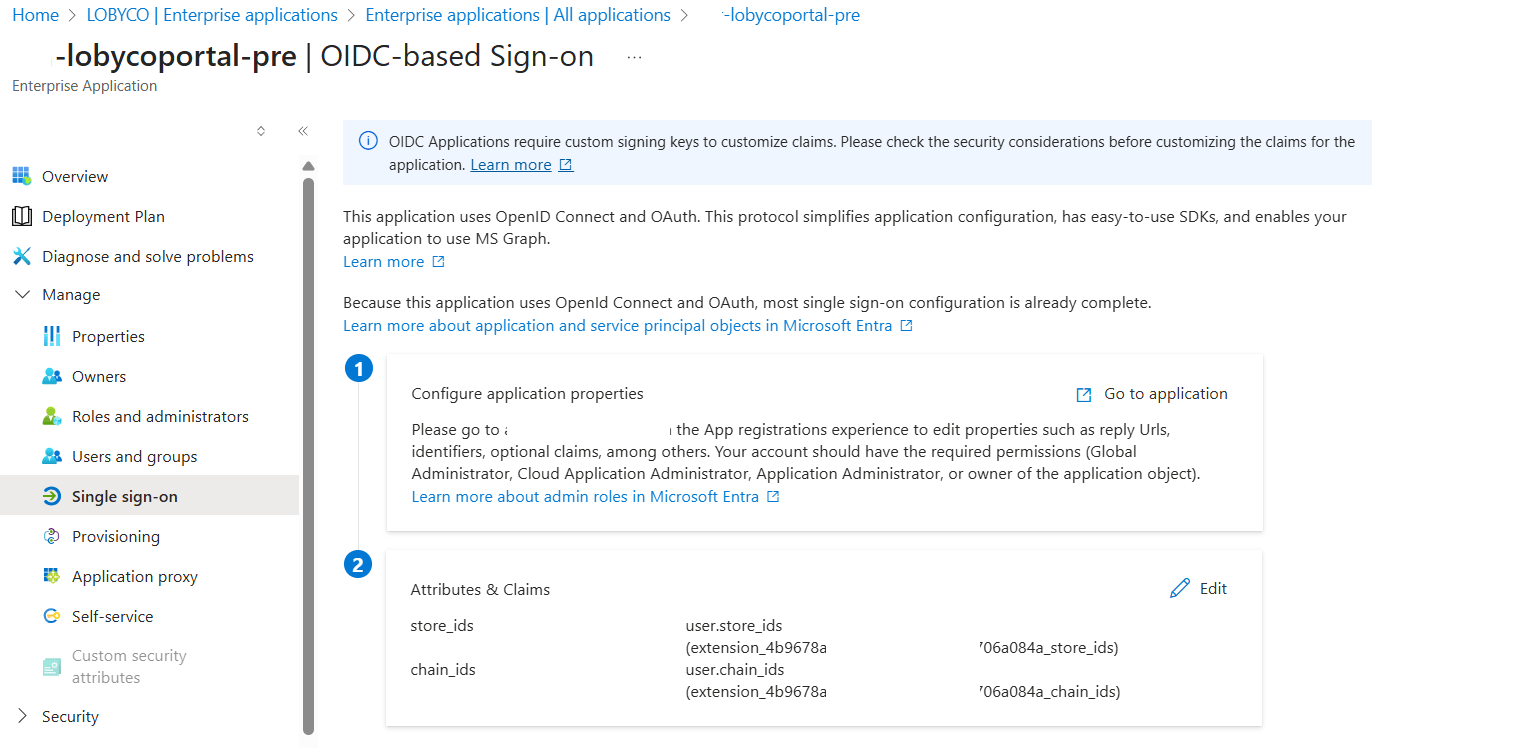 *Single sign-on on the portal's enterprise application, with both claims already mapped*
Under **Attributes & Claims**, choose **Edit**, then **Add new claim**.
*Single sign-on on the portal's enterprise application, with both claims already mapped*
Under **Attributes & Claims**, choose **Edit**, then **Add new claim**.
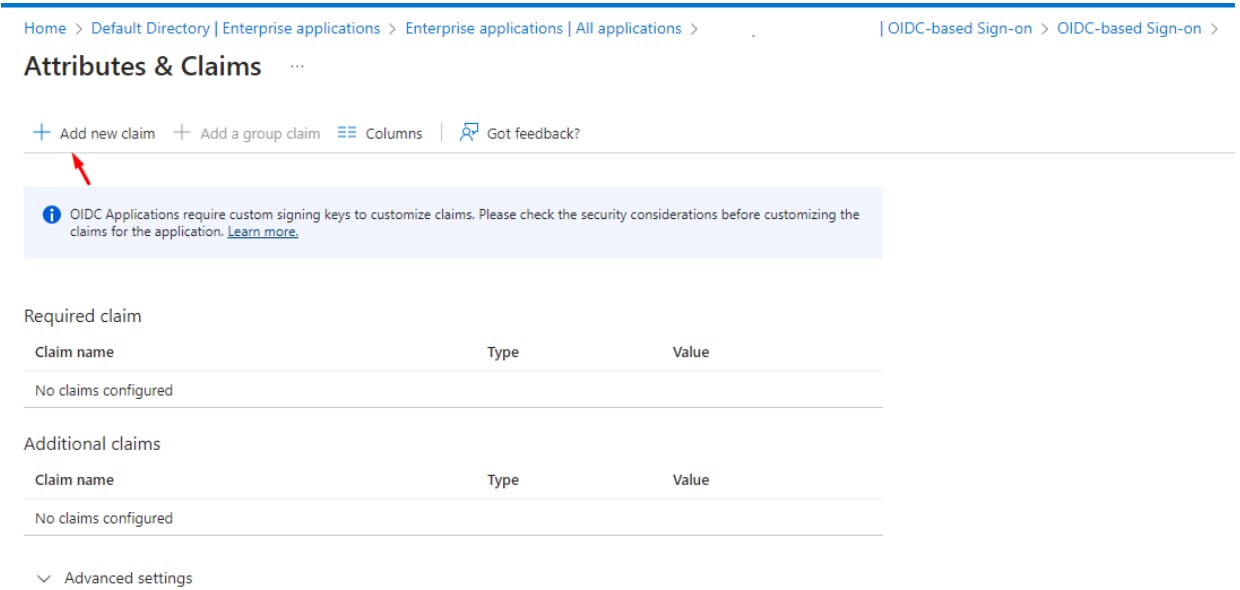 *Add new claim*
Name the claim `store_ids`, set **Source** to **Attribute**, and under **Schema extension attribute** pick the extension app and its `store_ids` property. Save, and repeat for `chain_ids`.
*Add new claim*
Name the claim `store_ids`, set **Source** to **Attribute**, and under **Schema extension attribute** pick the extension app and its `store_ids` property. Save, and repeat for `chain_ids`.
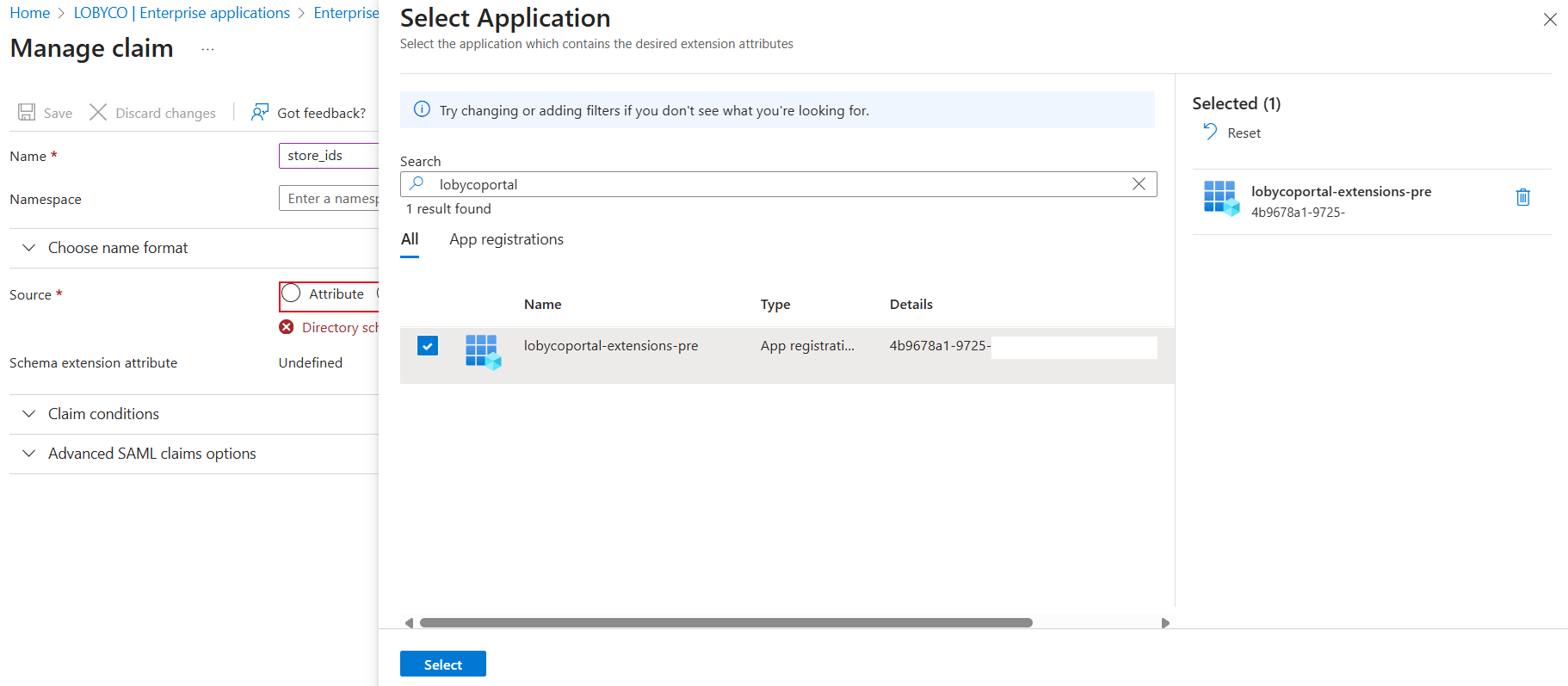 *Each claim points at an extension property of the extension app*
Check that both `chain_ids` and `store_ids` are listed and saved.
### Find the user's object id
Open **Microsoft Entra ID → All users**, search for the admin user by email and open the profile. Copy **Object ID**. The Postman requests address the user by it.
*Each claim points at an extension property of the extension app*
Check that both `chain_ids` and `store_ids` are listed and saved.
### Find the user's object id
Open **Microsoft Entra ID → All users**, search for the admin user by email and open the profile. Copy **Object ID**. The Postman requests address the user by it.
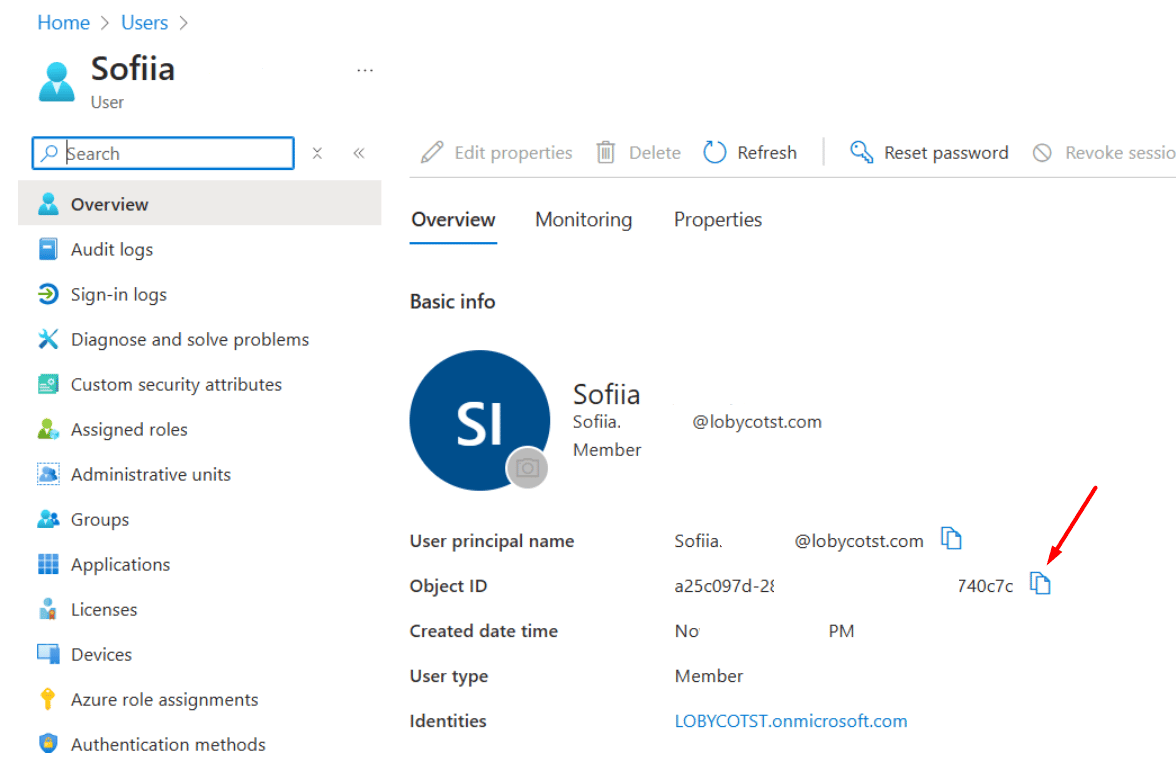 *The Object ID on the user's profile*
### Import the Postman collection
Copy the JSON from [Postman collection](/integration/get-started/admin-portal-chain-and-store-level-access/postman-collection) into a `.json` file and import it in Postman. On the collection's **Variables** tab, fill in the values and choose **Save**:
| Variable | Value |
| - | - |
| `tenant_id` | The tenant that holds the admin users' accounts |
| `extension_app_id` | The application (client) id of the extension app |
| `extension_app_id_without_hyphens` | The same id with the hyphens removed |
| `extension_app_secret` | The extension app's secret |
| `user_object_id` | The object id of the user to assign ids to |
### Assign the ids to the user
Run the collection's requests in order.
1. **Step 1. Get extension app token** fetches a token with the extension app's credentials and stores it in the collection. The next two requests use it.
2. **Step 2. Get user attributes** reads the user and the two extension properties, so you see the current values.
3. **Step 3. Assign custom claim to the user** sends a `PATCH` with the ids. Edit the body before you send it.
*The Object ID on the user's profile*
### Import the Postman collection
Copy the JSON from [Postman collection](/integration/get-started/admin-portal-chain-and-store-level-access/postman-collection) into a `.json` file and import it in Postman. On the collection's **Variables** tab, fill in the values and choose **Save**:
| Variable | Value |
| - | - |
| `tenant_id` | The tenant that holds the admin users' accounts |
| `extension_app_id` | The application (client) id of the extension app |
| `extension_app_id_without_hyphens` | The same id with the hyphens removed |
| `extension_app_secret` | The extension app's secret |
| `user_object_id` | The object id of the user to assign ids to |
### Assign the ids to the user
Run the collection's requests in order.
1. **Step 1. Get extension app token** fetches a token with the extension app's credentials and stores it in the collection. The next two requests use it.
2. **Step 2. Get user attributes** reads the user and the two extension properties, so you see the current values.
3. **Step 3. Assign custom claim to the user** sends a `PATCH` with the ids. Edit the body before you send it.
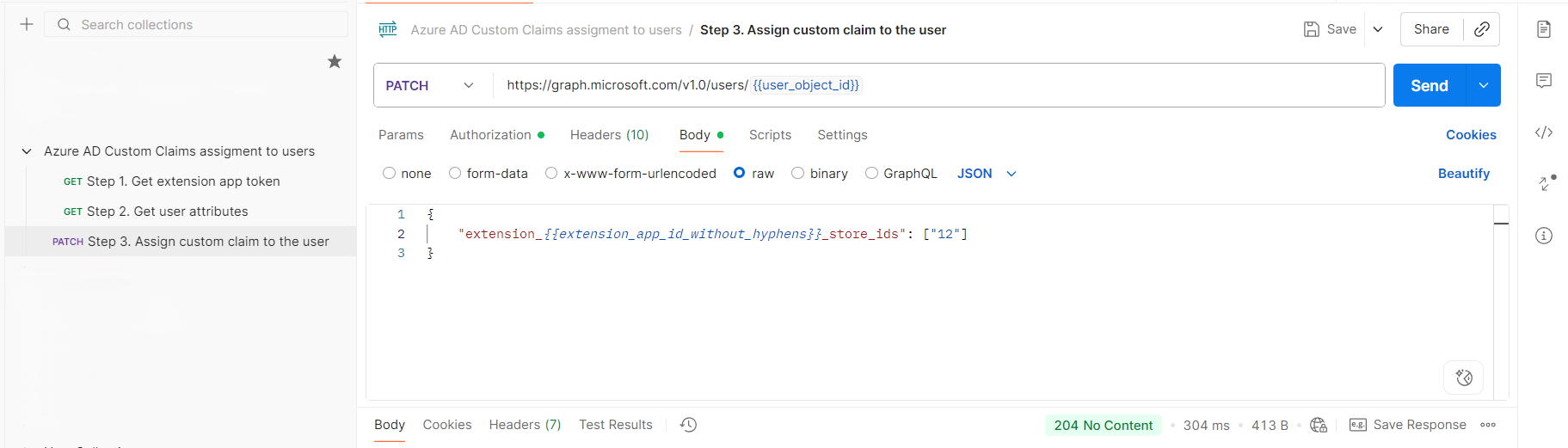 *Assigning one store id; Microsoft Graph answers 204 No Content*
One chain:
```json theme={"system"}
{
"extension_{{extension_app_id_without_hyphens}}_chain_ids": ["1"]
}
```
Several stores:
```json theme={"system"}
{
"extension_{{extension_app_id_without_hyphens}}_store_ids": ["12", "13"]
}
```
### Check the claims on the user
Run **Step 2. Get user attributes** again. The response now lists the ids you assigned.
*Assigning one store id; Microsoft Graph answers 204 No Content*
One chain:
```json theme={"system"}
{
"extension_{{extension_app_id_without_hyphens}}_chain_ids": ["1"]
}
```
Several stores:
```json theme={"system"}
{
"extension_{{extension_app_id_without_hyphens}}_store_ids": ["12", "13"]
}
```
### Check the claims on the user
Run **Step 2. Get user attributes** again. The response now lists the ids you assigned.
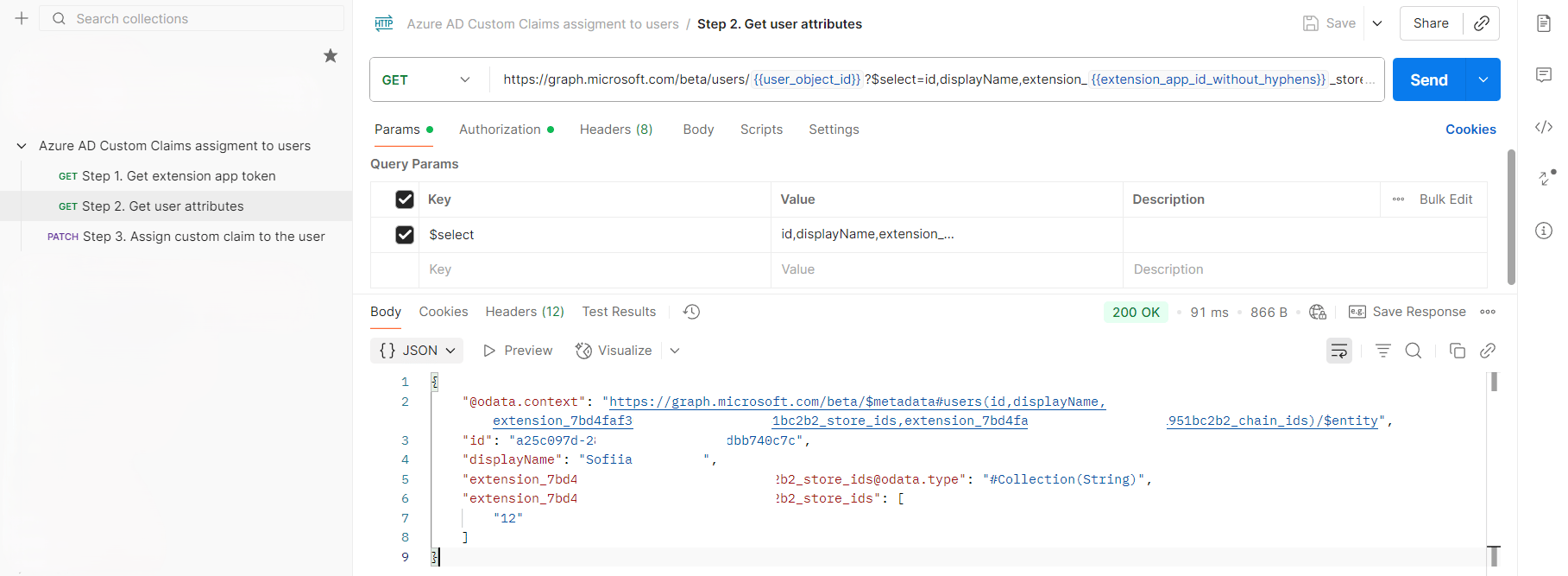 *The user's attributes after the assignment*
Then ask the admin user to sign out of the portal and in again. They now see only the chains or stores on their account.
## Failure and edge cases
If the admin user sees something else, the cause is usually one of these.
The claims are read at sign-in. A user who was signed in during the assignment keeps the old token until they sign out and in again.
The `PATCH` sets the whole list; it does not add to it. To add store `14` to a user who has `12` and `13`, send all three. To remove a store, send the list without it.
The ids must be exactly the ones imported into Lobyco's store master data. The portal does not translate names or codes.
Decode it and check that `store_ids` or `chain_ids` is present with the right values. See [Verifying the claims in the auth token](/integration/get-started/admin-portal-chain-and-store-level-access/troubleshooting-verifying-claims-in-the-auth-token).
## Related
* [Postman collection](/integration/get-started/admin-portal-chain-and-store-level-access/postman-collection) — the three requests the assignment uses.
* [Verifying the claims in the auth token](/integration/get-started/admin-portal-chain-and-store-level-access/troubleshooting-verifying-claims-in-the-auth-token) — reading the claims from a signed-in user's token.
* [Access to Lobyco Admin Portal](/integration/get-started/access-to-lobyco-admin-portal) — the roles that open the sections this access narrows.
* [Importing store and chain data](/integration/retail-master-data/import-chains-and-stores) — where the ids come from.
This documentation is built and hosted on [Mintlify](https://mintlify.com), a developer documentation platform.
*The user's attributes after the assignment*
Then ask the admin user to sign out of the portal and in again. They now see only the chains or stores on their account.
## Failure and edge cases
If the admin user sees something else, the cause is usually one of these.
The claims are read at sign-in. A user who was signed in during the assignment keeps the old token until they sign out and in again.
The `PATCH` sets the whole list; it does not add to it. To add store `14` to a user who has `12` and `13`, send all three. To remove a store, send the list without it.
The ids must be exactly the ones imported into Lobyco's store master data. The portal does not translate names or codes.
Decode it and check that `store_ids` or `chain_ids` is present with the right values. See [Verifying the claims in the auth token](/integration/get-started/admin-portal-chain-and-store-level-access/troubleshooting-verifying-claims-in-the-auth-token).
## Related
* [Postman collection](/integration/get-started/admin-portal-chain-and-store-level-access/postman-collection) — the three requests the assignment uses.
* [Verifying the claims in the auth token](/integration/get-started/admin-portal-chain-and-store-level-access/troubleshooting-verifying-claims-in-the-auth-token) — reading the claims from a signed-in user's token.
* [Access to Lobyco Admin Portal](/integration/get-started/access-to-lobyco-admin-portal) — the roles that open the sections this access narrows.
* [Importing store and chain data](/integration/retail-master-data/import-chains-and-stores) — where the ids come from.
This documentation is built and hosted on [Mintlify](https://mintlify.com), a developer documentation platform.