> ## Documentation Index
> Fetch the complete documentation index at: https://help.lobyco.com/llms.txt
> Use this file to discover all available pages before exploring further.
# Access to Lobyco Admin Portal
> Connect your Azure AD to the Lobyco Admin Portal, grant consent once for everyone, and assign the roles that open each section.
Your staff sign in to the Lobyco Admin Portal with their own corporate Azure AD accounts. Lobyco makes that possible with a multi-tenant Azure AD app. You manage who gets which role inside your own directory, and the portal reads the roles from the sign-in token. This page is the setup in your tenant. Your Azure AD administrator does it once per environment.
## Before you start
* Send Lobyco your Azure tenant id. Lobyco whitelists it and sends back the portal address and the name of the portal's Azure AD app, for pre-production and for production. The addresses take the form `https://admin.your-environment.lobyco.net/`; the exact values differ per client and per environment.
* You must be a [Global Administrator, an Application Administrator or a Cloud Application Administrator](https://docs.microsoft.com/en-us/azure/active-directory/users-groups-roles/directory-assign-admin-roles) in your tenant. Consent for the whole directory is an admin action.
* Decide which admin users get which roles. The roles, and the portal sections they open, are on [Admin portal roles](/integration/get-started/admin-portal-roles).
## The procedure
### Open the portal and sign in
Open the admin portal address for the environment and sign in with your organisation account.
### Accept the requested permissions
Azure AD asks you to accept the permissions the portal app requests: signing you in and reading your profile. Choose **Accept**.
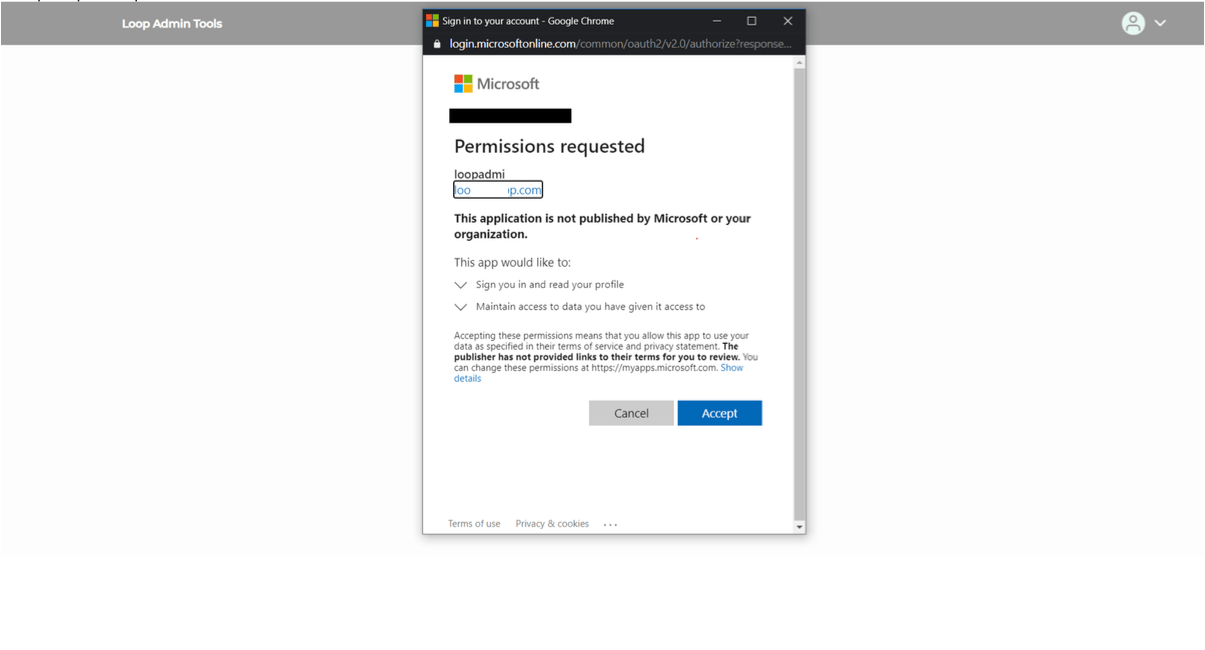 *The consent dialog on the first sign-in to the admin portal*
The portal then opens empty. There are no sections in the left panel yet, because no role has been assigned. That is the expected state at this point.
*The consent dialog on the first sign-in to the admin portal*
The portal then opens empty. There are no sections in the left panel yet, because no role has been assigned. That is the expected state at this point.
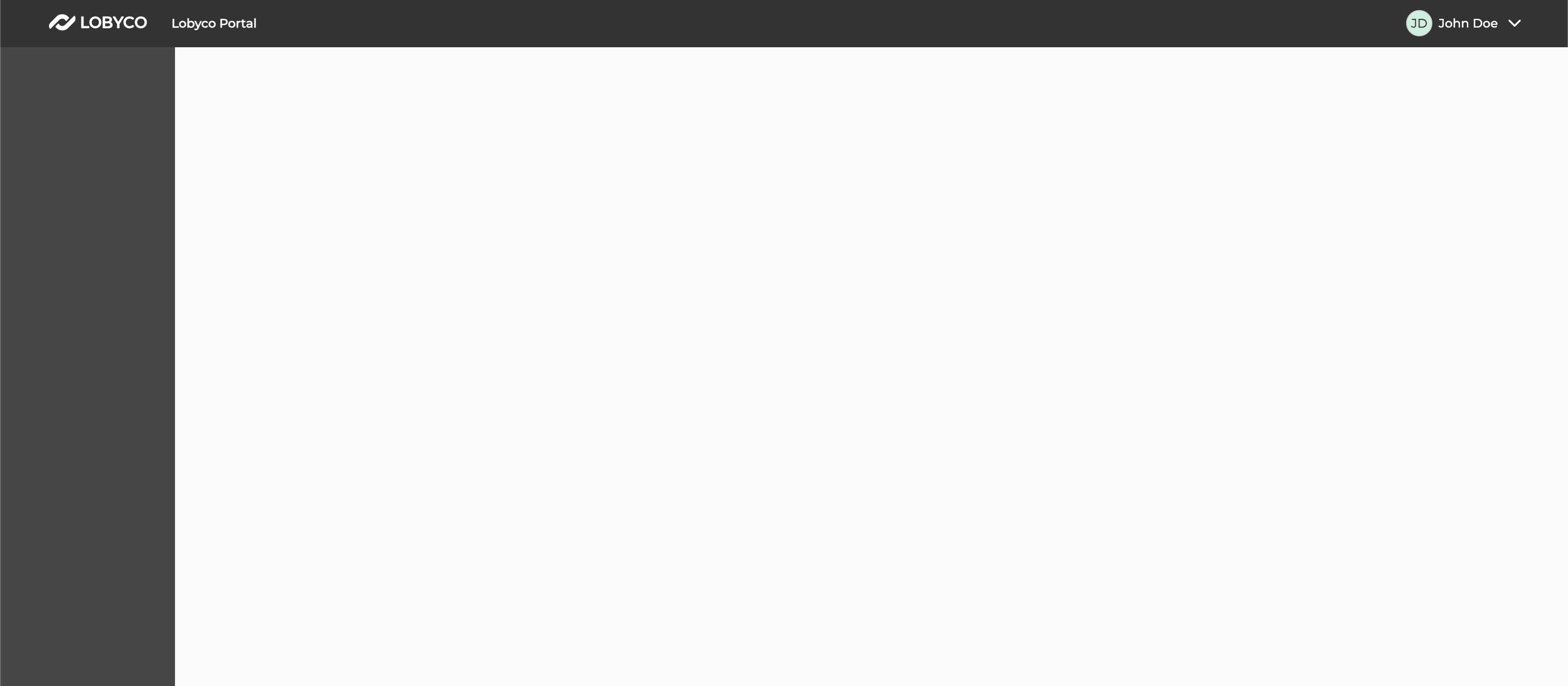 *An empty portal: signed in, no roles yet*
### Find the portal app among the enterprise applications
In the Azure portal, open **Azure Active Directory → Enterprise applications** and search for the app name Lobyco gave you for this environment. The first sign-in created it in your tenant.
*An empty portal: signed in, no roles yet*
### Find the portal app among the enterprise applications
In the Azure portal, open **Azure Active Directory → Enterprise applications** and search for the app name Lobyco gave you for this environment. The first sign-in created it in your tenant.
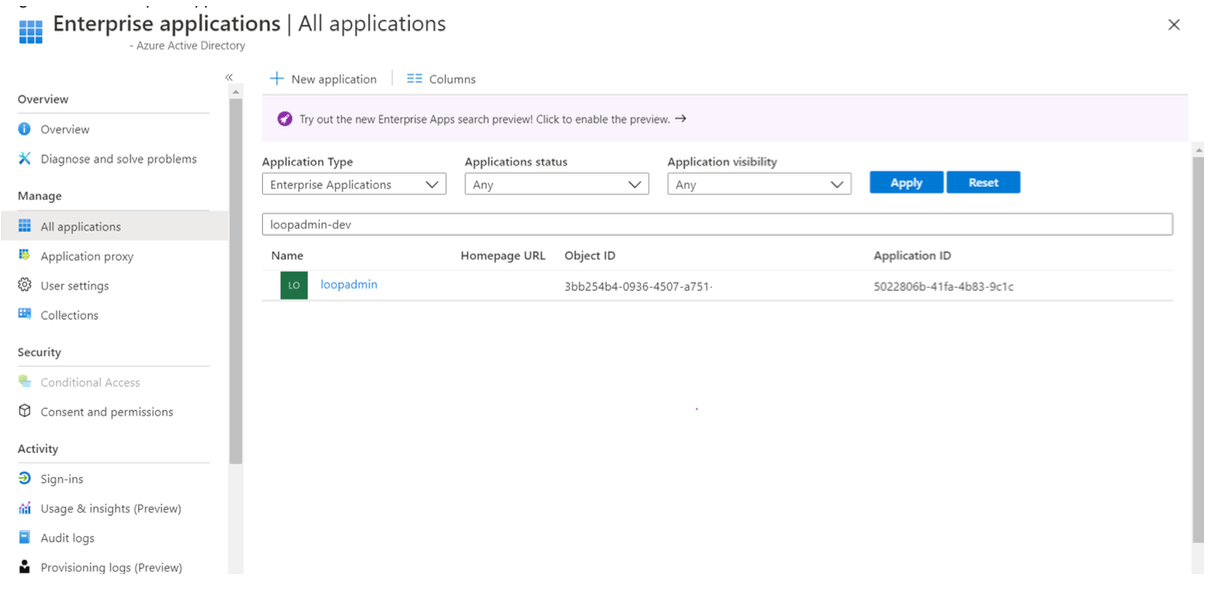 *The portal's enterprise application in your tenant*
### Grant consent for the whole directory
Open the app and go to **Permissions**. Choose **Grant admin consent** for your directory. After that, admin users are not asked to consent one by one when they sign in.
### Assign users and groups to roles
Go to **Users and groups** and choose **Add user/group**. Select the Azure AD users or security groups, and assign each a role. A user or a group can hold several roles. The roles are listed on [Admin portal roles](/integration/get-started/admin-portal-roles); `game.admin`, for example, opens the Game section.
With Azure AD Premium you can assign a security group to a role, and every member of the group inherits it. The group owner then manages access without being an admin or an app owner.
### Verify access
Open the admin portal again, in a new tab. The left panel now shows the sections your roles open.
*The portal's enterprise application in your tenant*
### Grant consent for the whole directory
Open the app and go to **Permissions**. Choose **Grant admin consent** for your directory. After that, admin users are not asked to consent one by one when they sign in.
### Assign users and groups to roles
Go to **Users and groups** and choose **Add user/group**. Select the Azure AD users or security groups, and assign each a role. A user or a group can hold several roles. The roles are listed on [Admin portal roles](/integration/get-started/admin-portal-roles); `game.admin`, for example, opens the Game section.
With Azure AD Premium you can assign a security group to a role, and every member of the group inherits it. The group owner then manages access without being an admin or an app owner.
### Verify access
Open the admin portal again, in a new tab. The left panel now shows the sections your roles open.
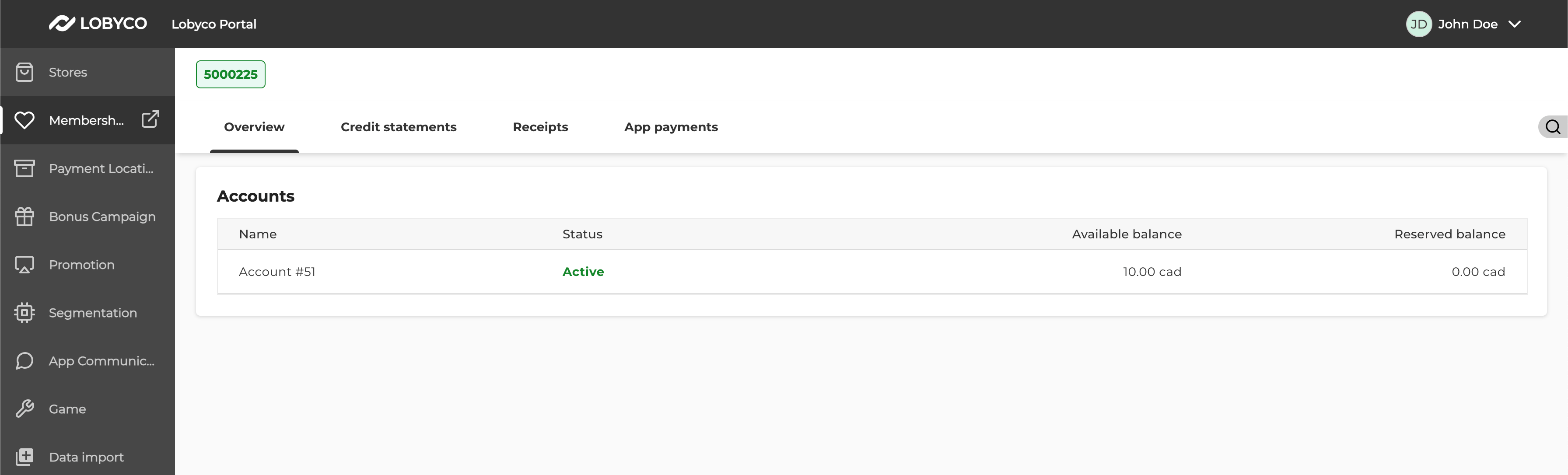 *The portal with roles assigned: each section in the left panel comes from a role*
## Failure and edge cases
If the portal does not show what you expect, the cause is usually one of these.
The admin user lacks the role for it, or signed in before the role was assigned. Assign the role, then sign out and in again; the roles are read from the token at sign-in.
The two environments are separate enterprise applications, with separate assignments. Repeat the assignment in each.
Roles open sections; they do not limit data to a chain or a store. For that, see [Admin portal chain and store level access](/integration/get-started/admin-portal-chain-and-store-level-access).
## Related
* [Admin portal roles](/integration/get-started/admin-portal-roles) — every role and the section it opens.
* [Admin portal chain and store level access](/integration/get-started/admin-portal-chain-and-store-level-access) — limiting an admin user to specific chains or stores.
* [Multi-tenant authentication using client credentials flow](/integration/get-started/api-authentication/multi-tenant-authentication-using-client-credentials-flow) — the matching setup for services instead of people.
This documentation is built and hosted on [Mintlify](https://mintlify.com), a developer documentation platform.
*The portal with roles assigned: each section in the left panel comes from a role*
## Failure and edge cases
If the portal does not show what you expect, the cause is usually one of these.
The admin user lacks the role for it, or signed in before the role was assigned. Assign the role, then sign out and in again; the roles are read from the token at sign-in.
The two environments are separate enterprise applications, with separate assignments. Repeat the assignment in each.
Roles open sections; they do not limit data to a chain or a store. For that, see [Admin portal chain and store level access](/integration/get-started/admin-portal-chain-and-store-level-access).
## Related
* [Admin portal roles](/integration/get-started/admin-portal-roles) — every role and the section it opens.
* [Admin portal chain and store level access](/integration/get-started/admin-portal-chain-and-store-level-access) — limiting an admin user to specific chains or stores.
* [Multi-tenant authentication using client credentials flow](/integration/get-started/api-authentication/multi-tenant-authentication-using-client-credentials-flow) — the matching setup for services instead of people.
This documentation is built and hosted on [Mintlify](https://mintlify.com), a developer documentation platform.